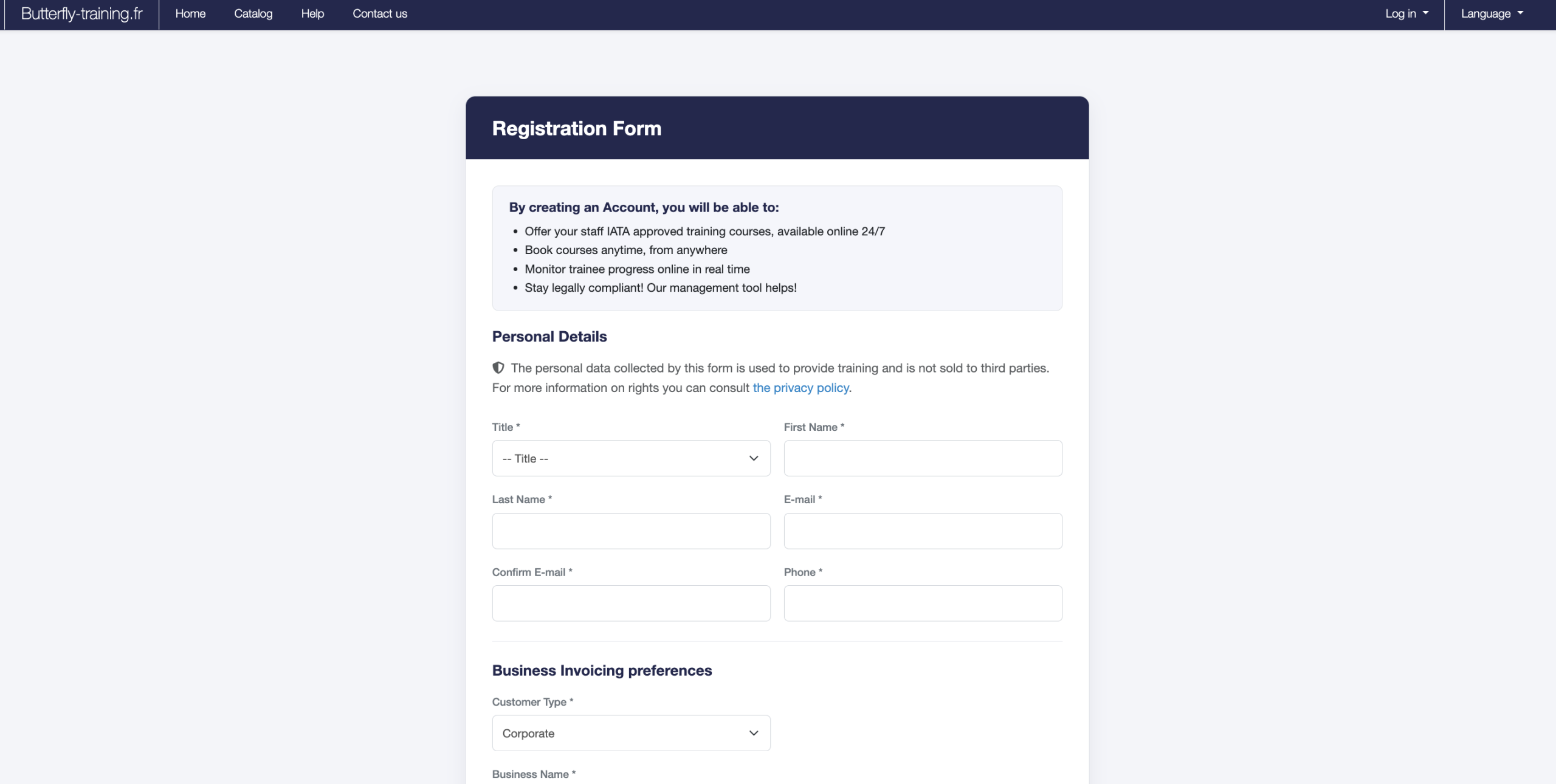
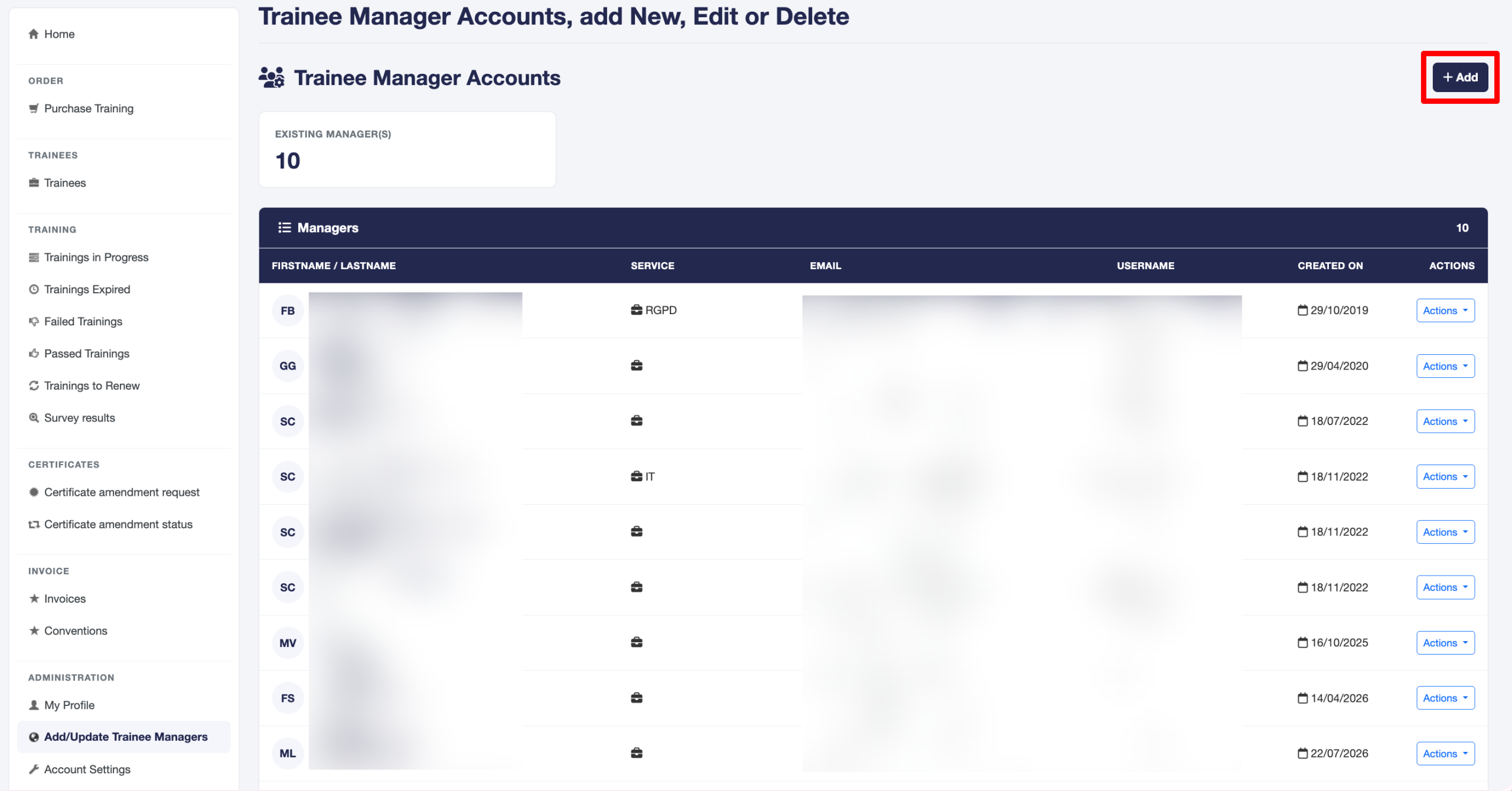
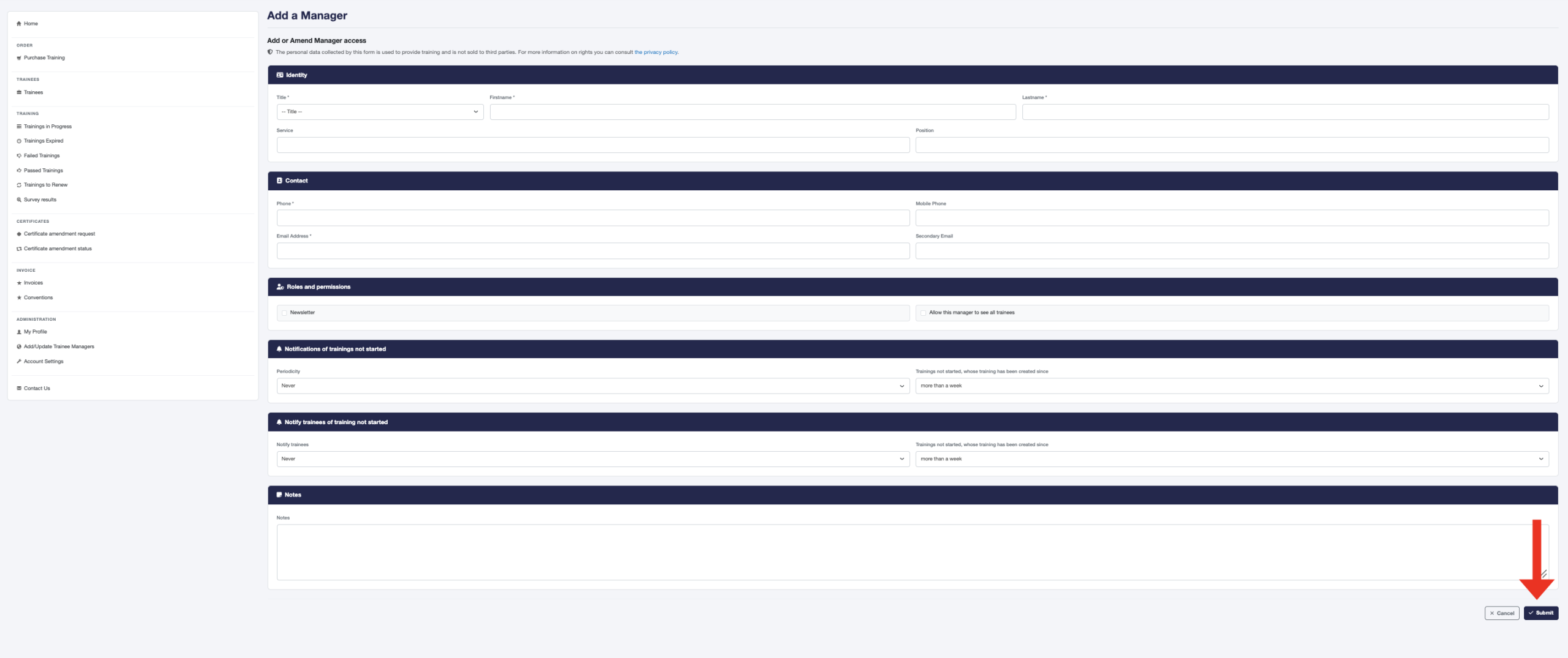
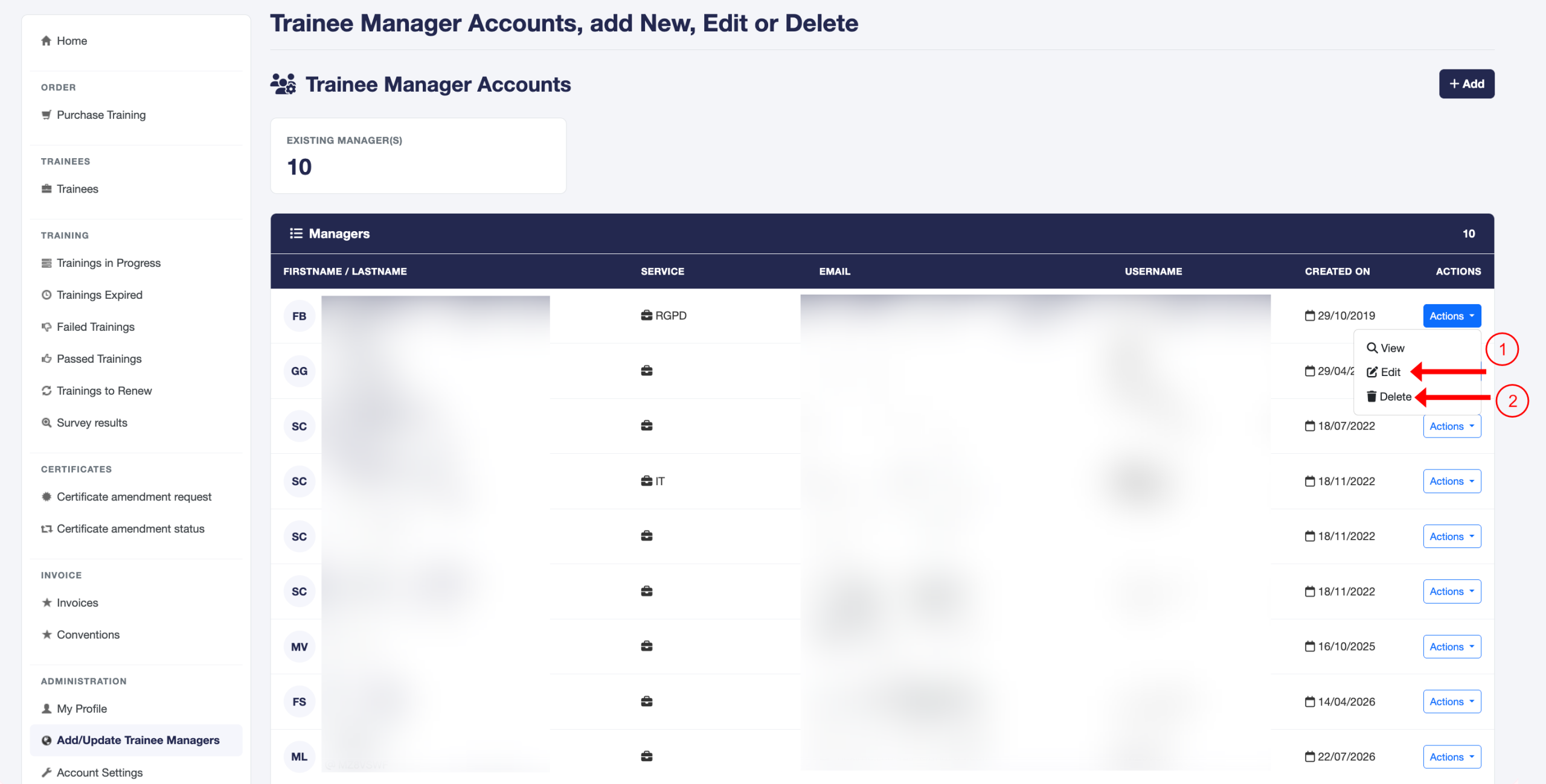
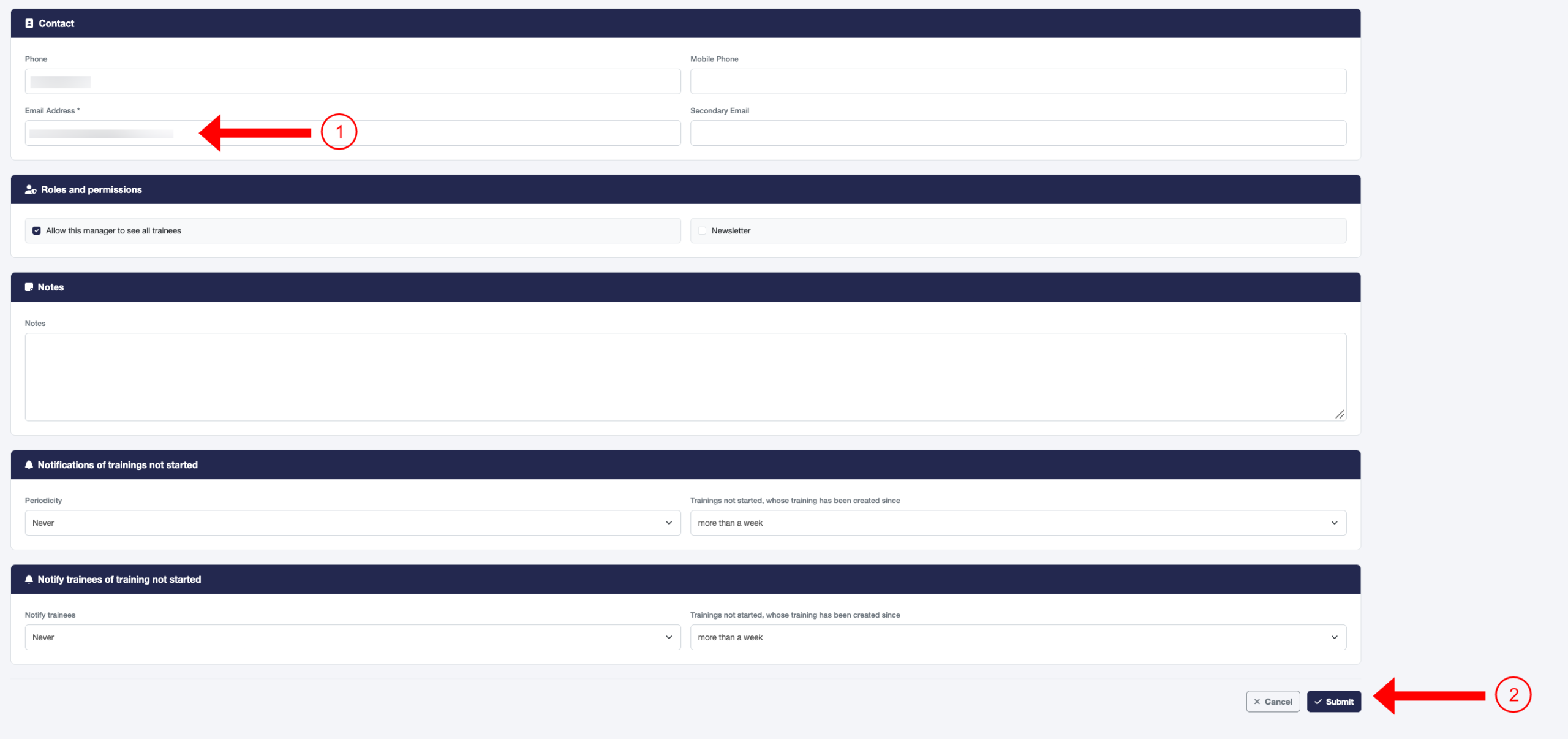
Once your account has been created, you will receive an email with your Manager access credentials. These credentials are strictly personal. You will be required to change your password at first login.
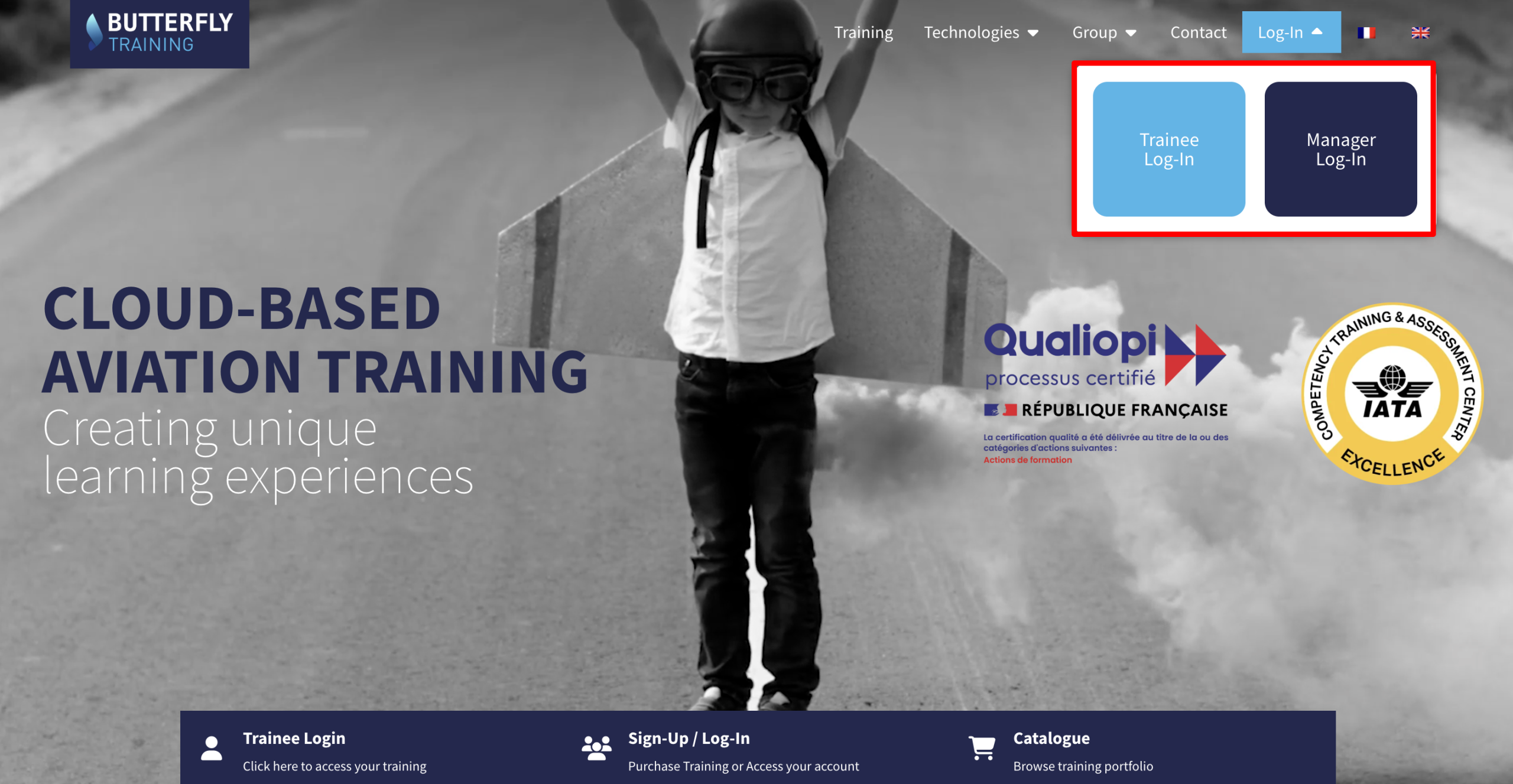
1.2 Click on Manager Log-In
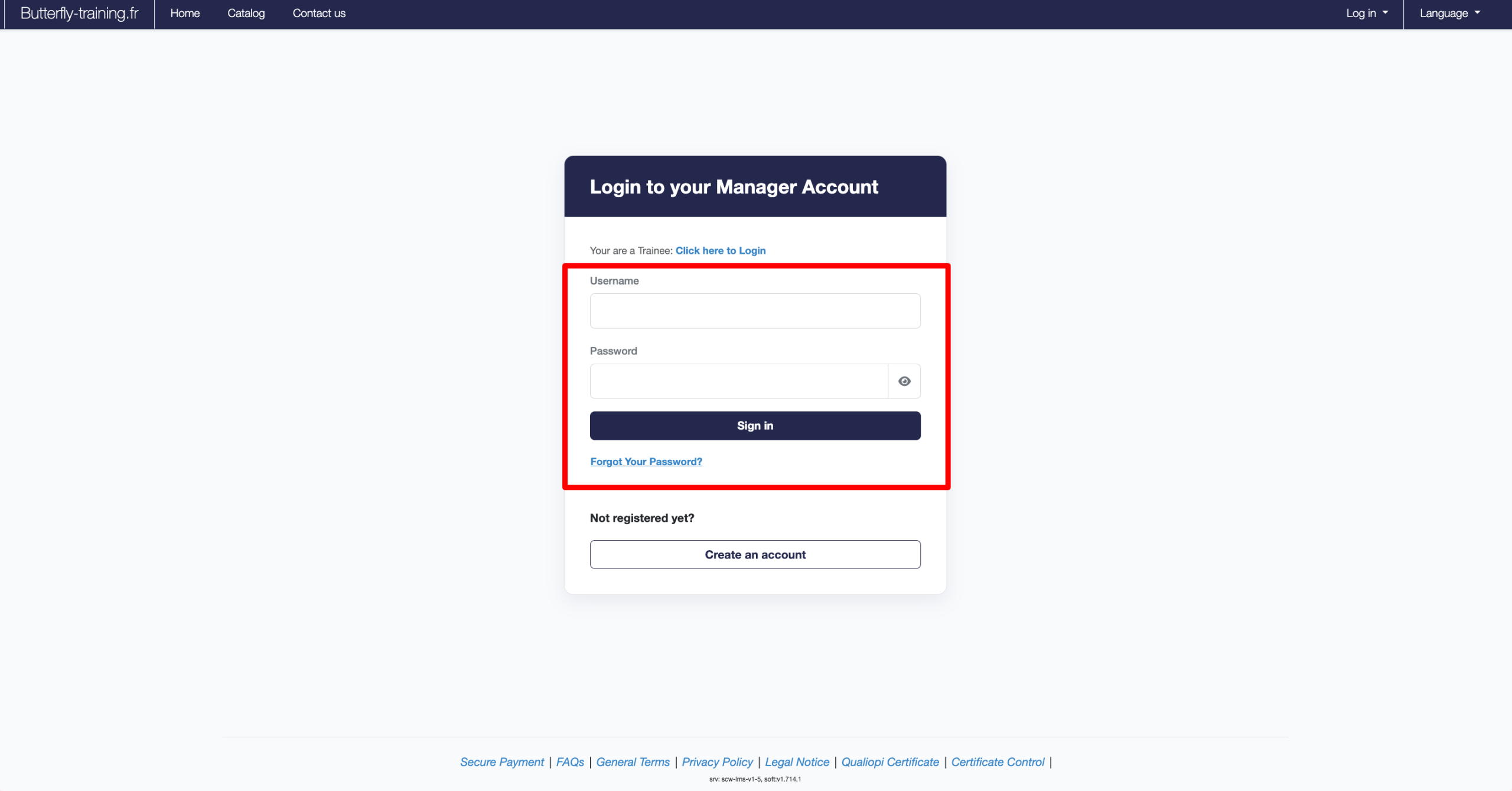
To order a training course, you must be logged in to your Manager account
1.3 Enter your username and password to log in
2. Enrolling a trainee in a training course
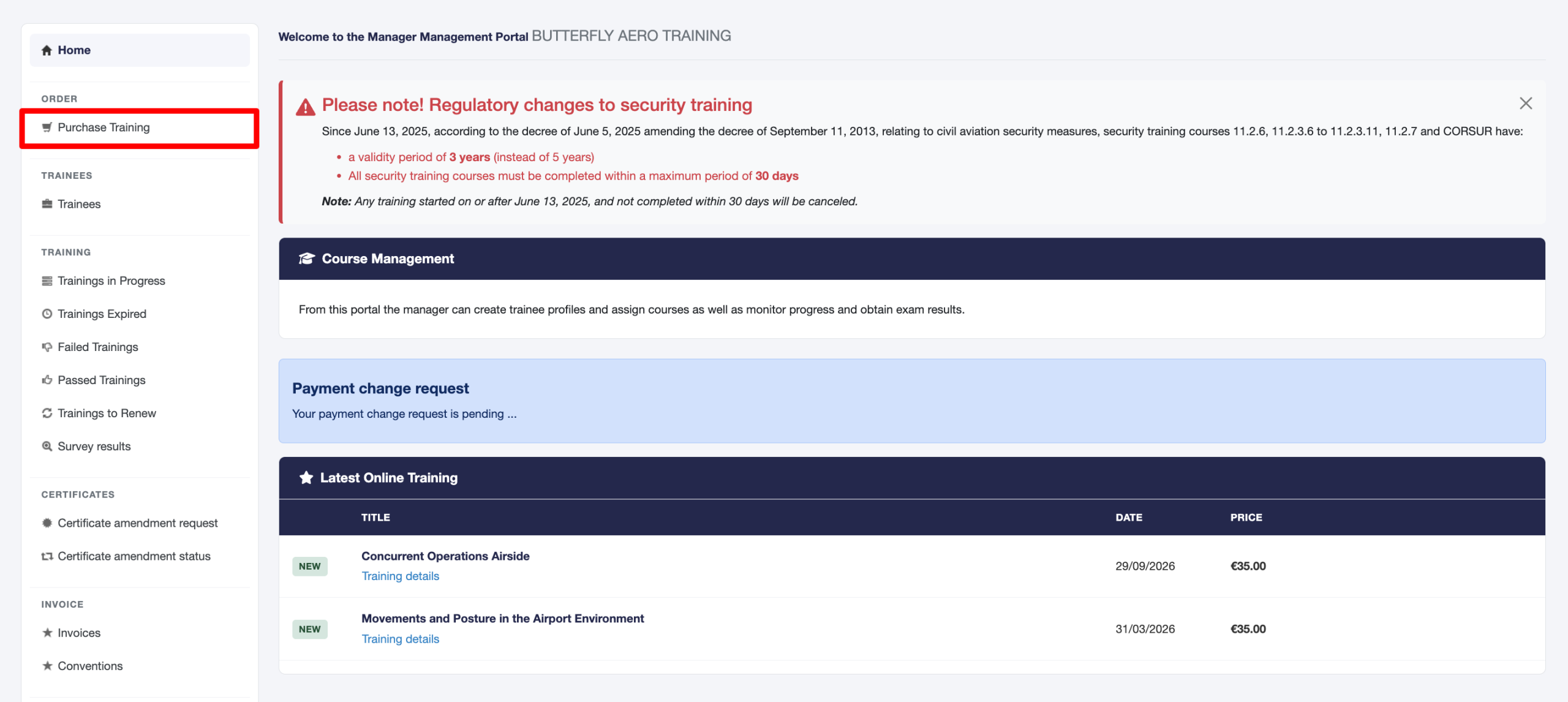
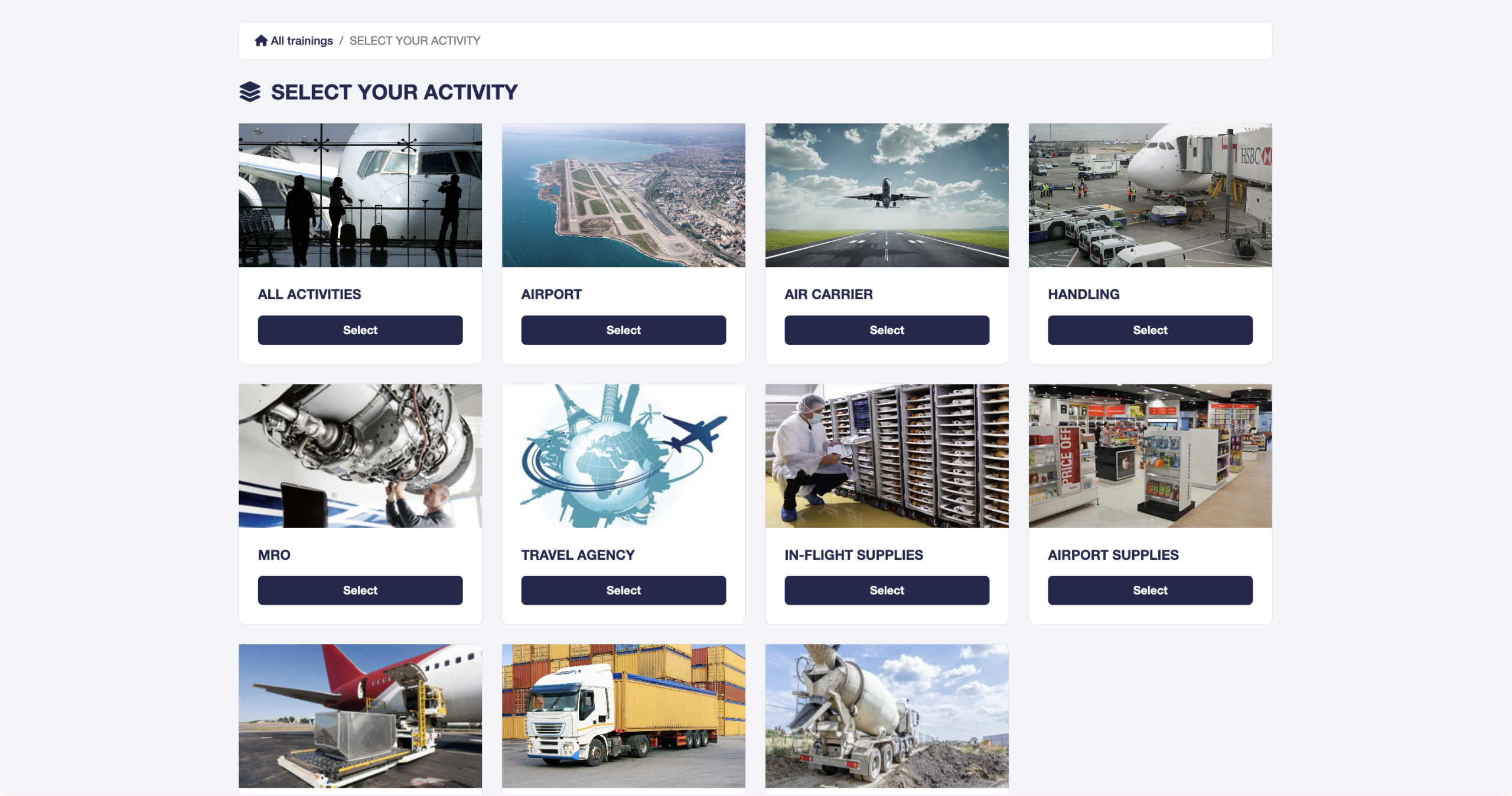
2.1 From your dashboard, click on Purchase Training
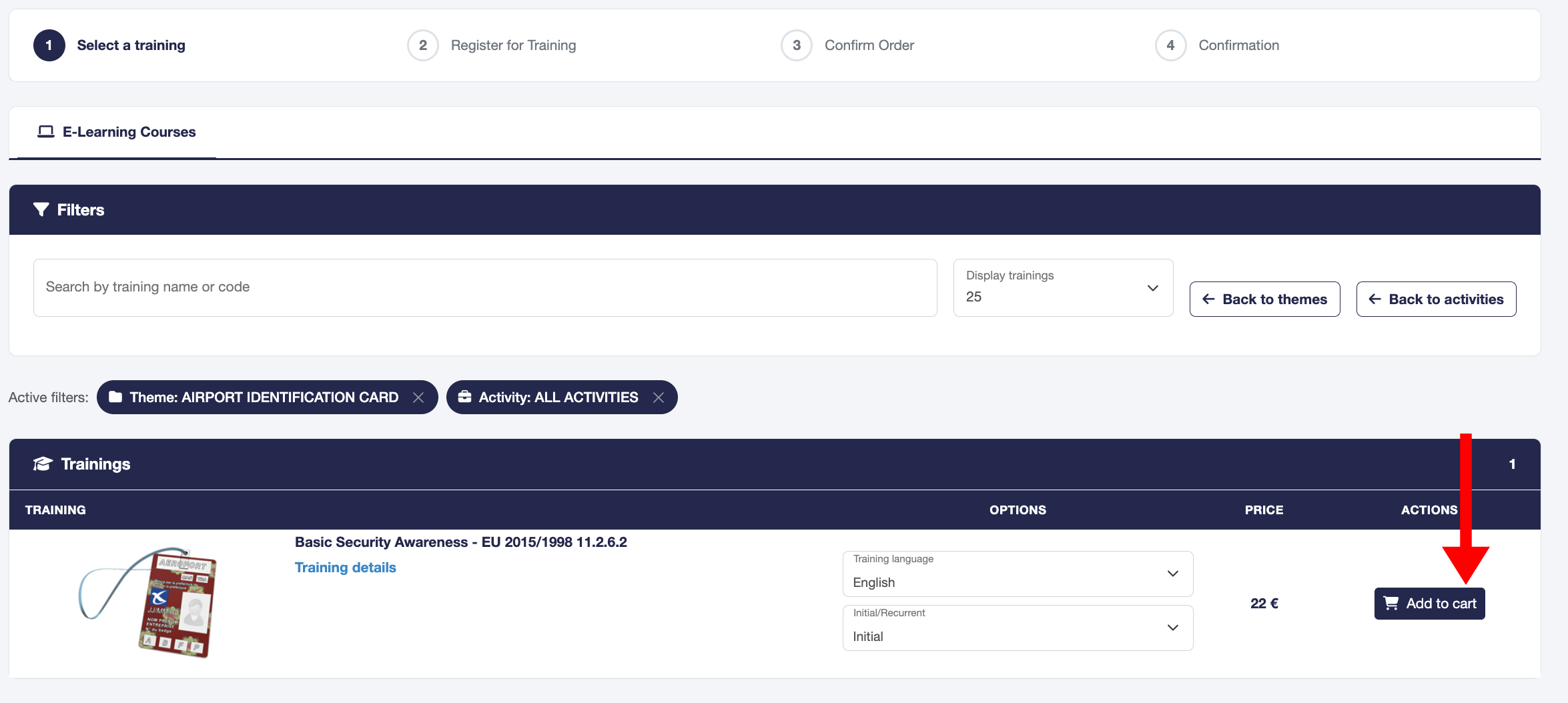
2.2 Select the training course from the catalogue1
1 For certain training courses, you will also need to select the language and the recurrency (Initial or Recurrent)
For DGR training courses, you must select the IATA or ICAO/EASA reference
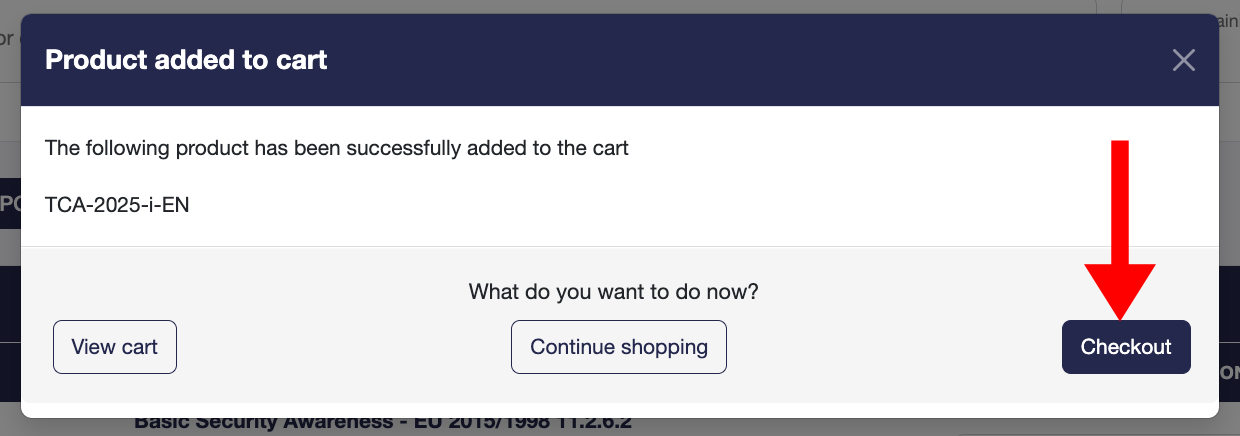
2.3 Click on Add to Cart,
just one click is all it takes!
2.4 Then, click on Checkout or on Continue Shopping to order additional training courses
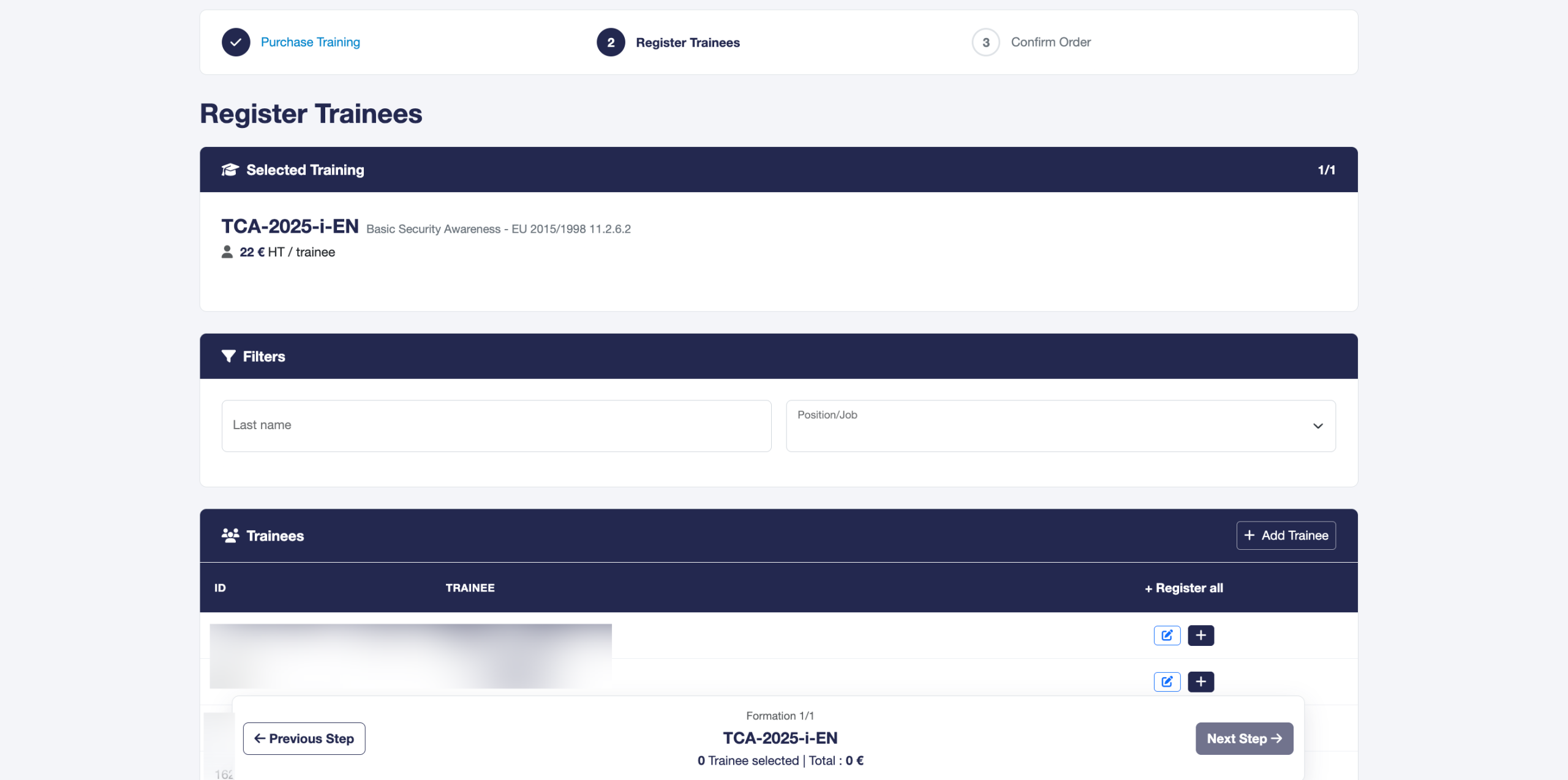
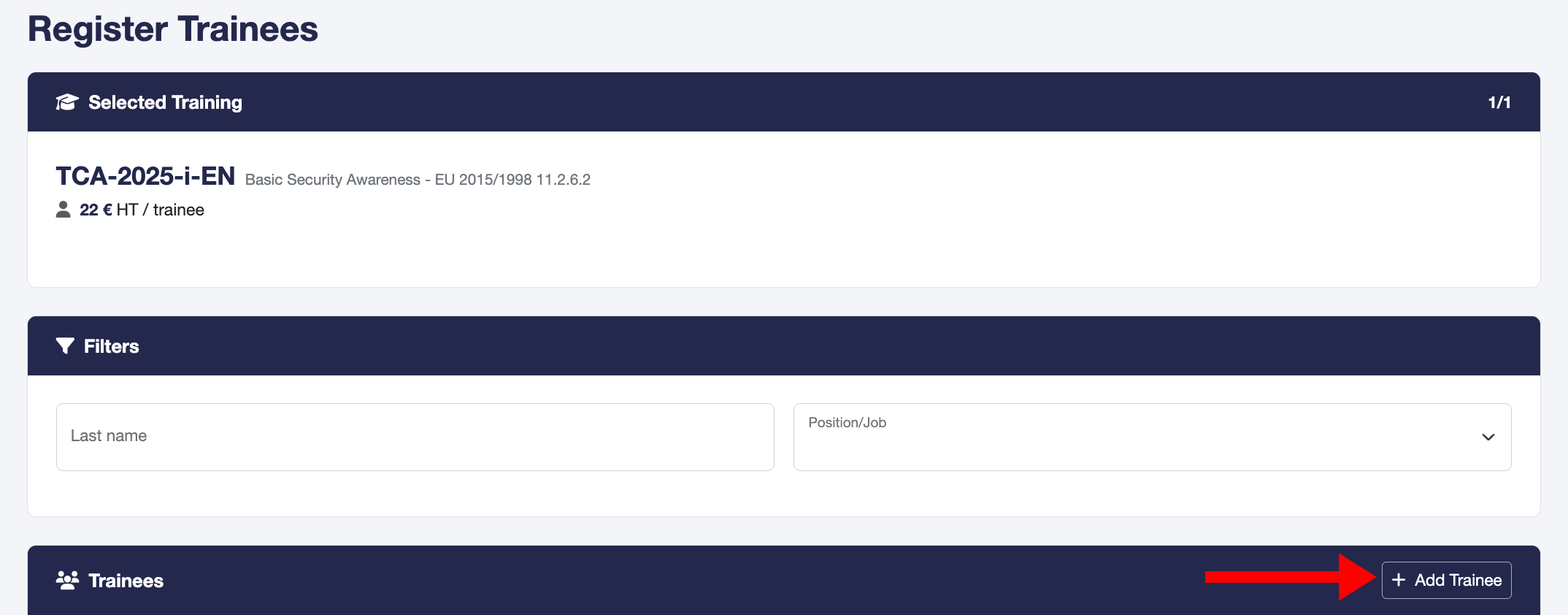
2.5 You will arrive on the Register Trainees page
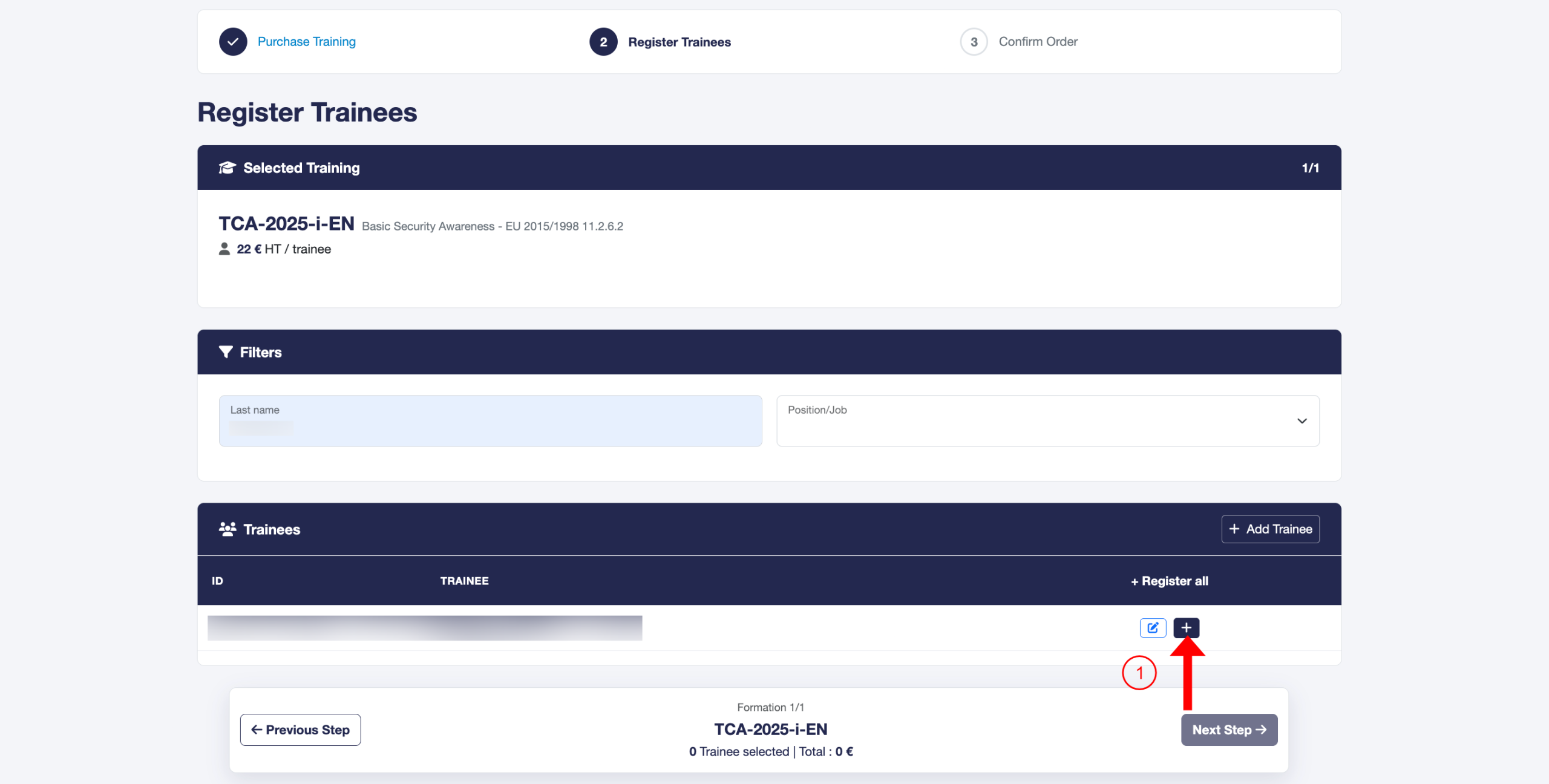
Choose the trainee from the list
You can use the search field by last name
If the trainee is not in the list, click on Add Trainee
1) Click the + button located to the right of the trainee’s name
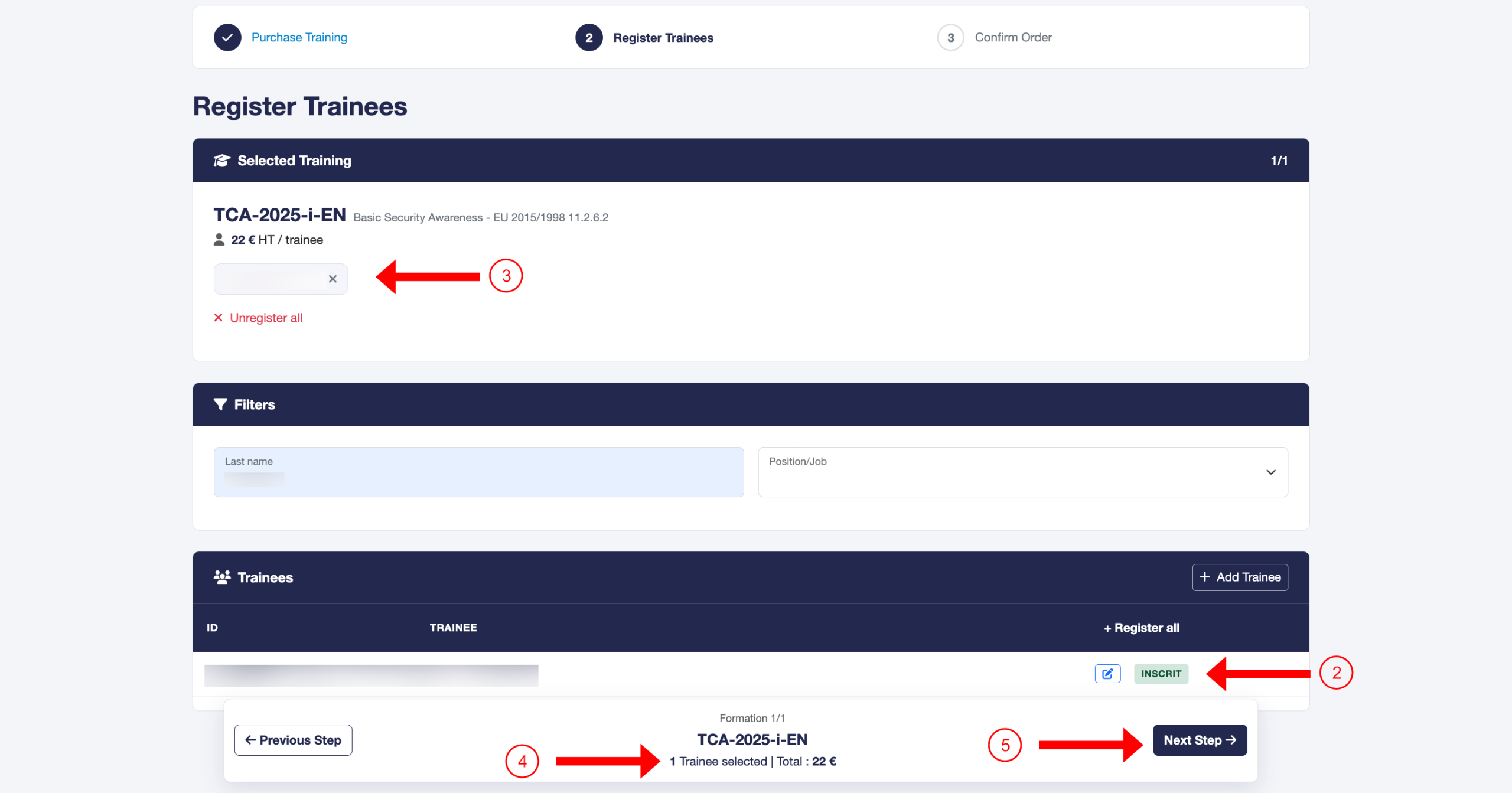
2) The + is now replaced by Registered, shown to the right of the trainee’s name
3) Their name then appears at the top left of the screen, confirming that their registration for the training course has been successfully recorded
4) The number of trainees and the total amount excl. VAT appear at the bottom of the screen
You can select as many trainees as you like
5) Click on Next Step to finalize your order
OR
to continue registering trainees if you have ordered other training courses.
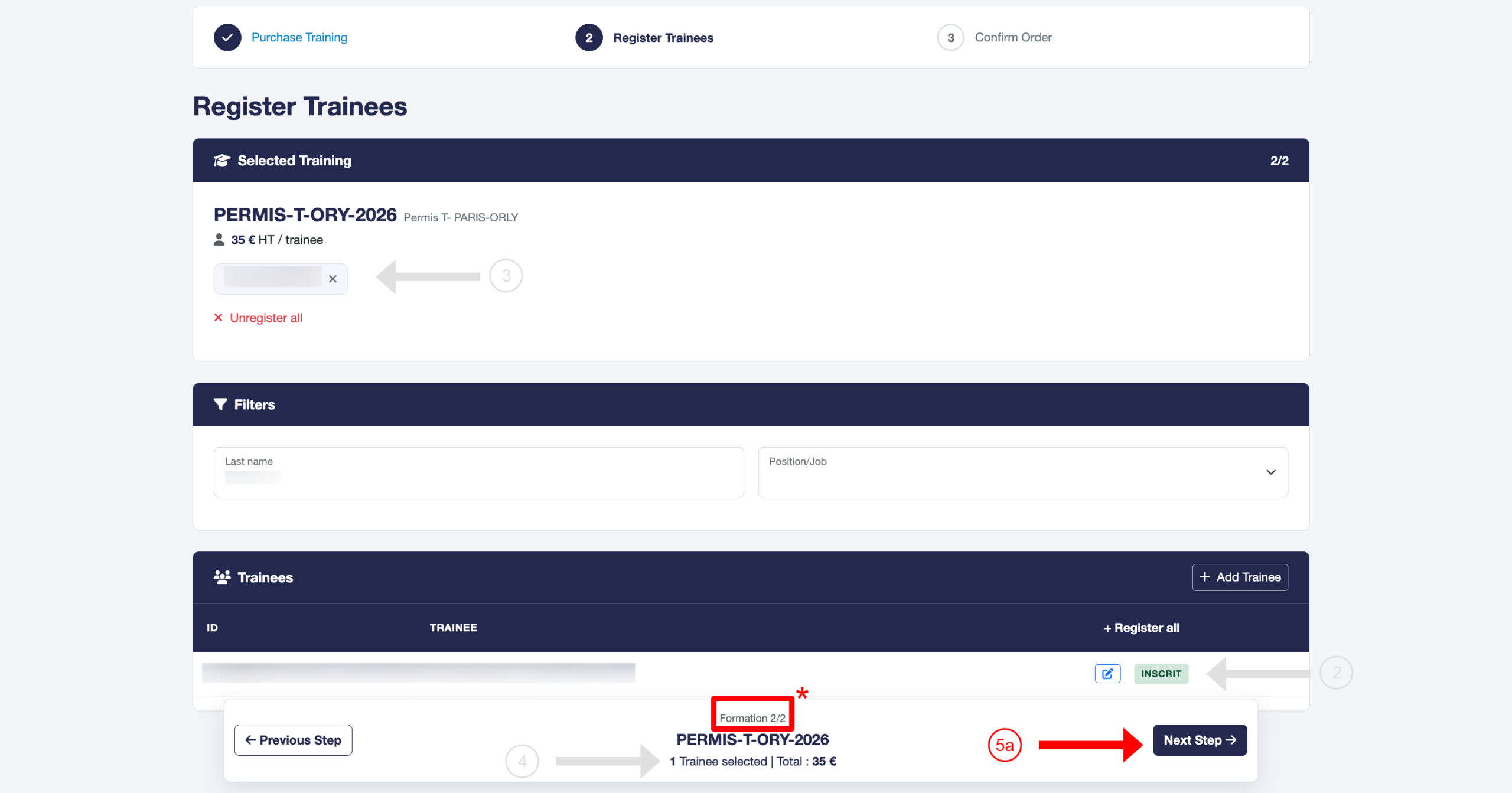
Click the + button to the right of the trainee’s name, as shown in point 1
See points 2, 3 and 4 (*) The number of training courses is displayed at the bottom of the screen
5a) Click Next step to complete your order
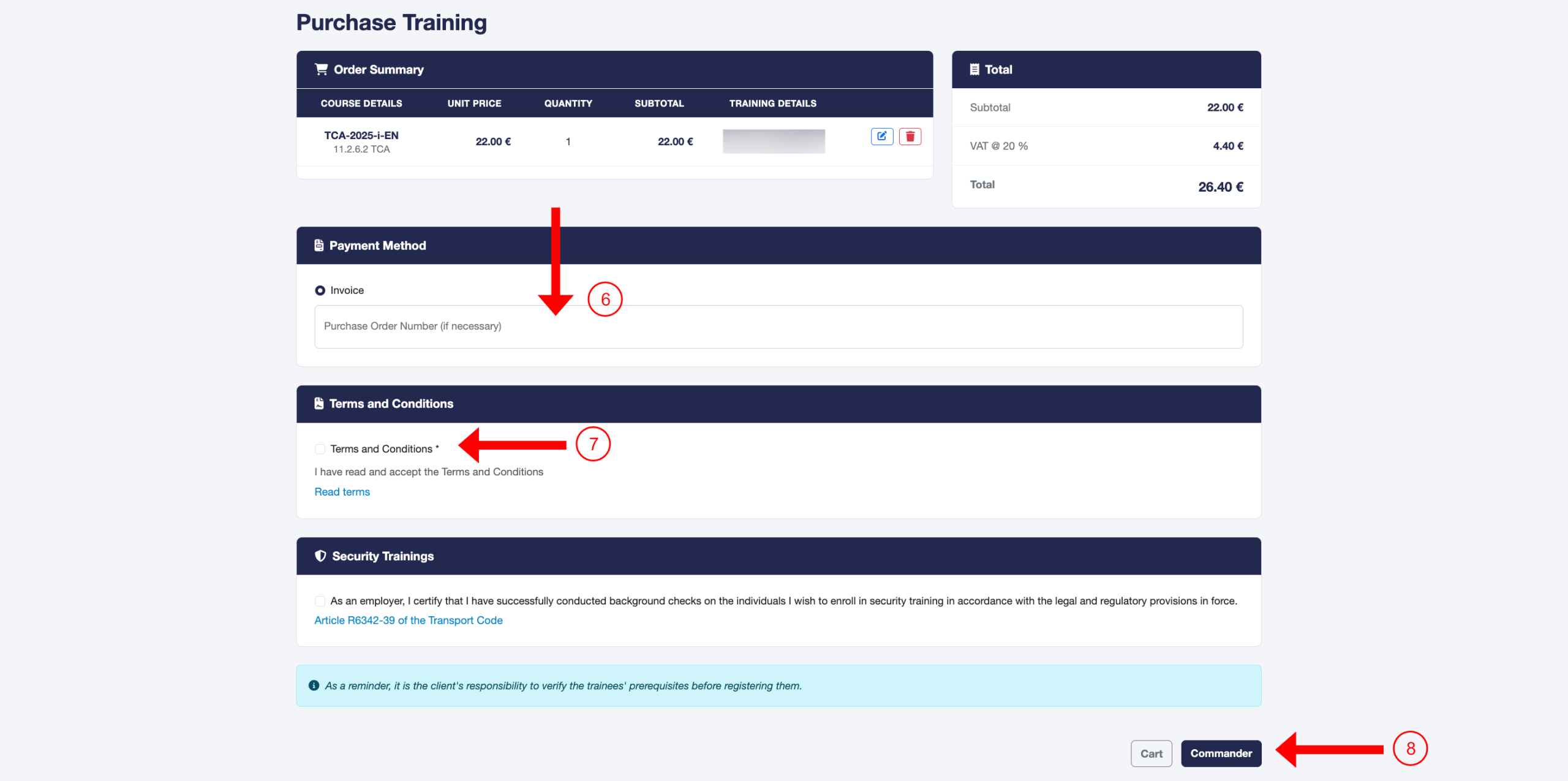
2.6 Screen for 1 training course
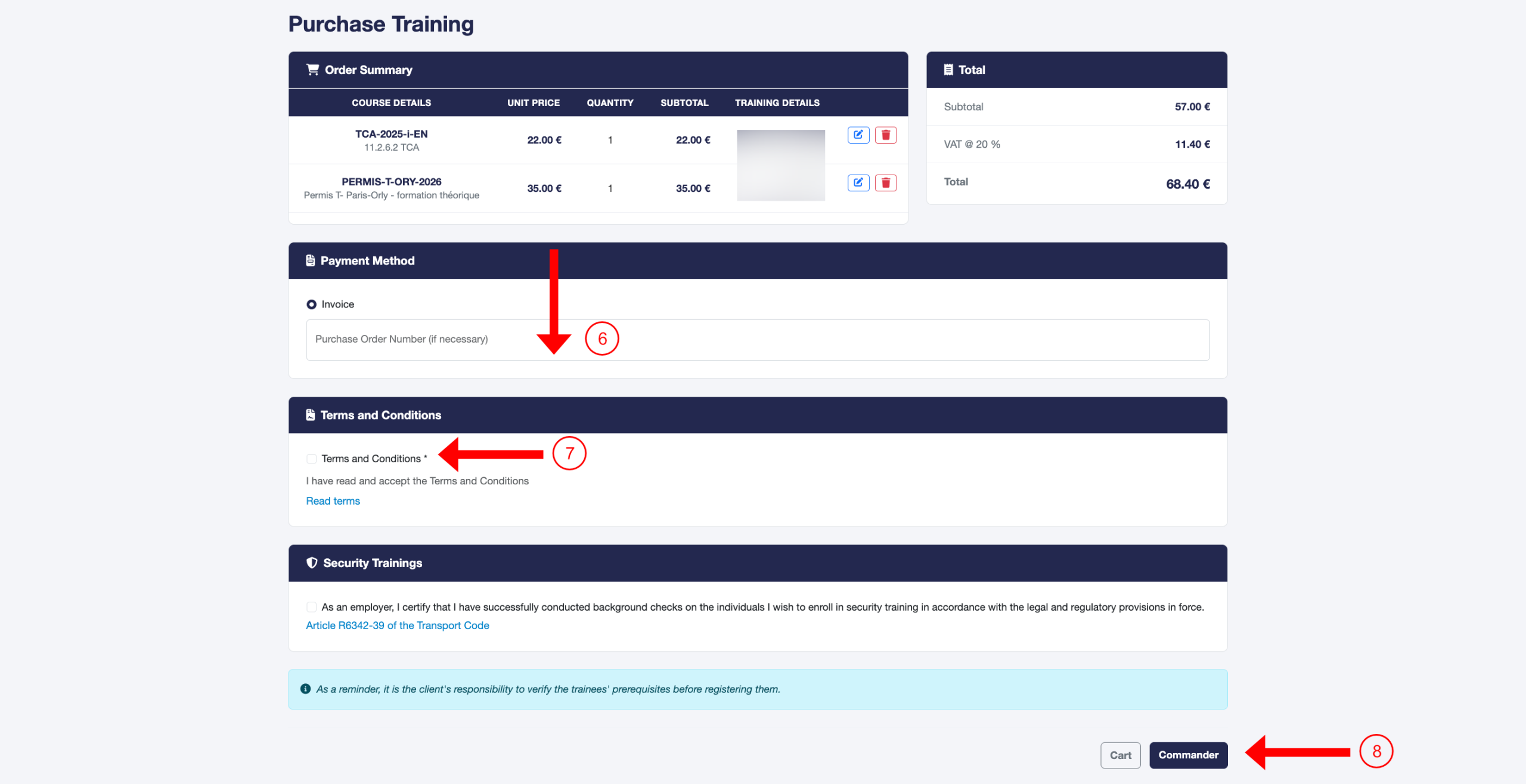
6) Enter a purchase order number if necessary. This will appear on your invoice
7) Accept the Terms and Conditions
If the order includes Security training courses, check the background check certification box
8) Click on Commander to confirm your registrations
Your registration confirmation(s) will appear on screen, and you will find your order under Trainings in Progress
Screen for multiple training courses
You will also receive an order confirmation email. This email contains:
The login credentials and passwords for all registered trainees
The final test code2 for each trainee, for Security training courses 11.2.3.6 to 11.2.3.11 and for the Permit T- PARIS-ORLY and Permit T- PARIS-CDG training courses
Once the training course has been successfully completed, you will receive the trainee’s individual training certificate by email.
2 This code must never be given to the trainee under any circumstances. At the end of the training course, entering this code gives the trainee access to the course’s final assessment. By entering this code, you and your company confirm that the trainee taking the final test is indeed the individual registered for the training course, in accordance with our general terms and conditions of sale and the guidelines of the Direction de la Sécurité de l’Aviation Civile (Civil Aviation Security Directorate).
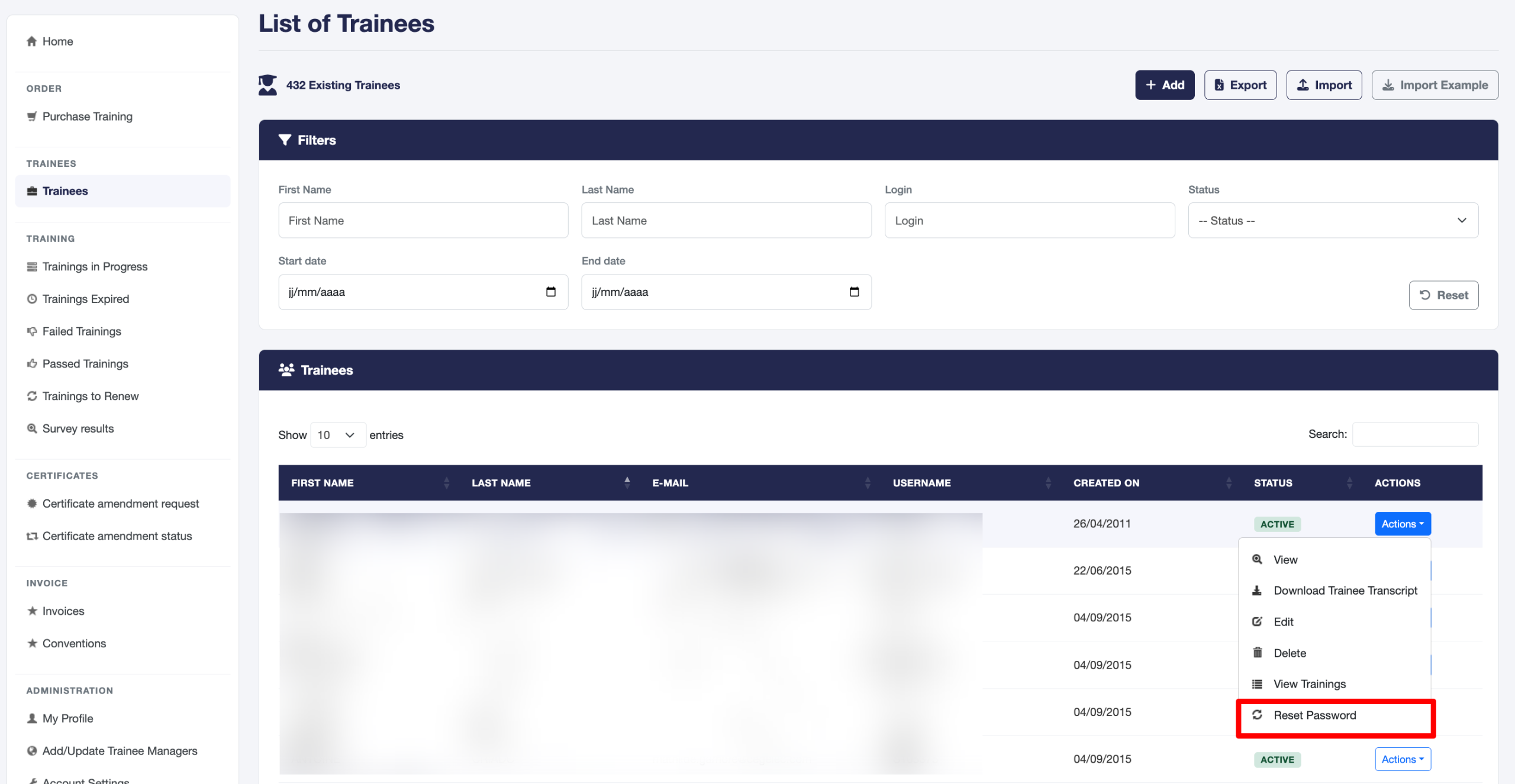
3. Resetting a trainee's password
From the Manager dashboard, the manager can reset a trainee’s password by clicking on Trainees, then on Actions
When the order is placed, a username and password are provided:
• This password is temporary and must be changed at first login, and the old one must no longer be used
• Please note that trainees can reset their password at any time if they have a personal email address
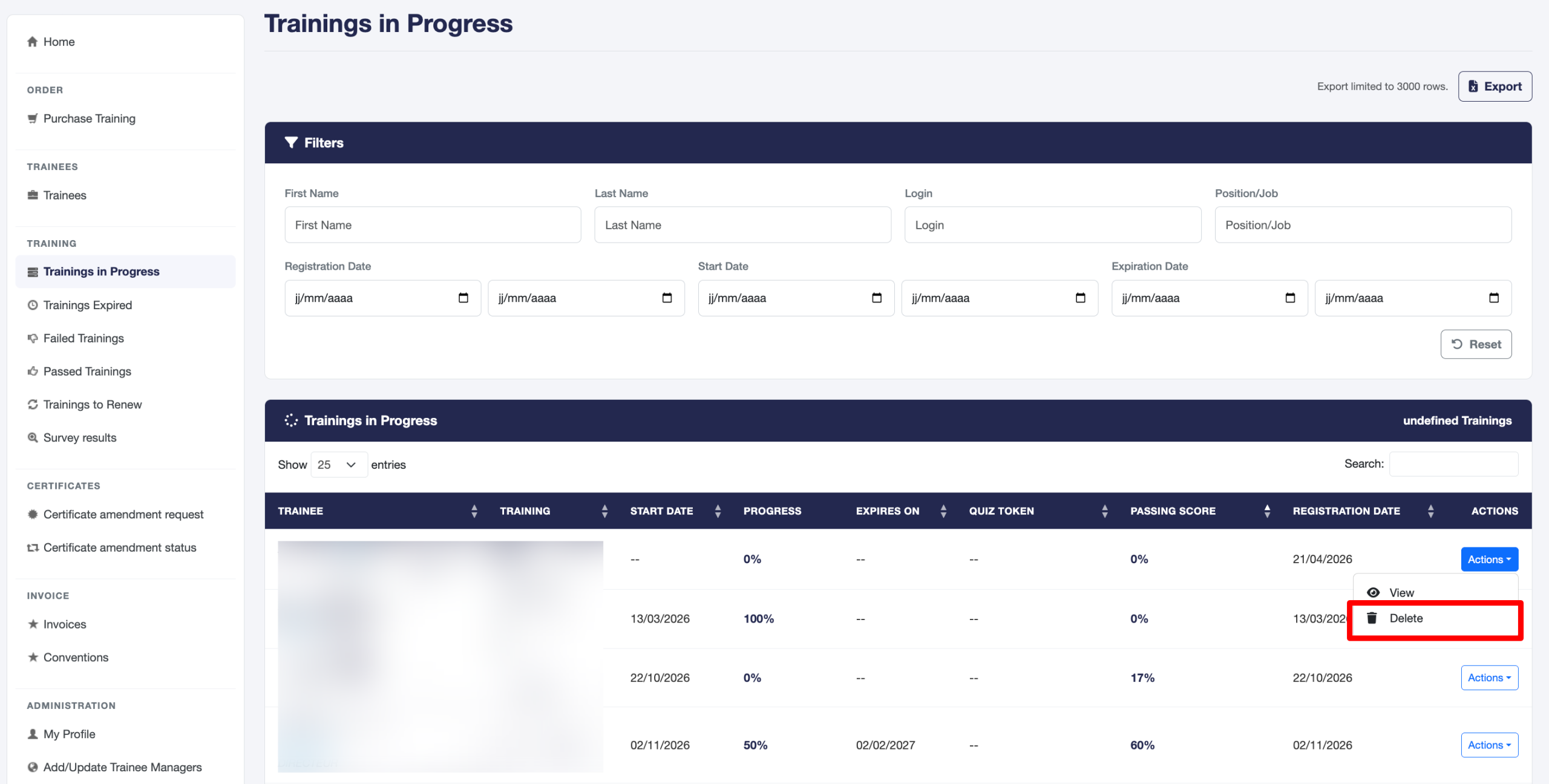
4. (Invoiced account) Cancelling an order for a training course that has not started
To cancel an order for a training course that has not started:
Click on Trainings in Progress
Locate the desired order (you can search by the trainee’s first and last name, or by their ID)
Click on Actions then Delete
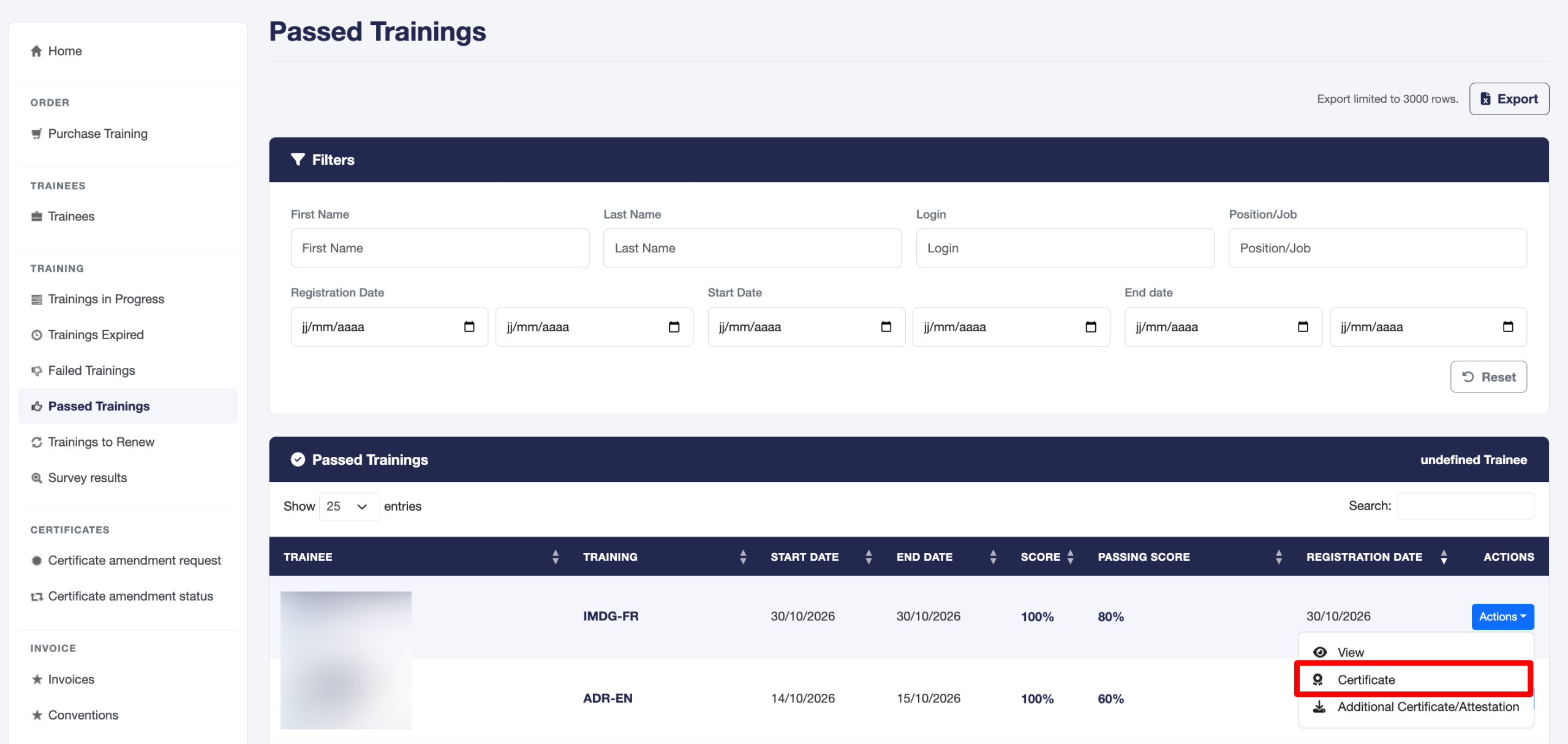
5. Downloading a training certificate
From your dashboard, click on Passed Trainings. You can search for your certificate using the trainee’s first name, last name, or login.
Then click on Actions and Certificate
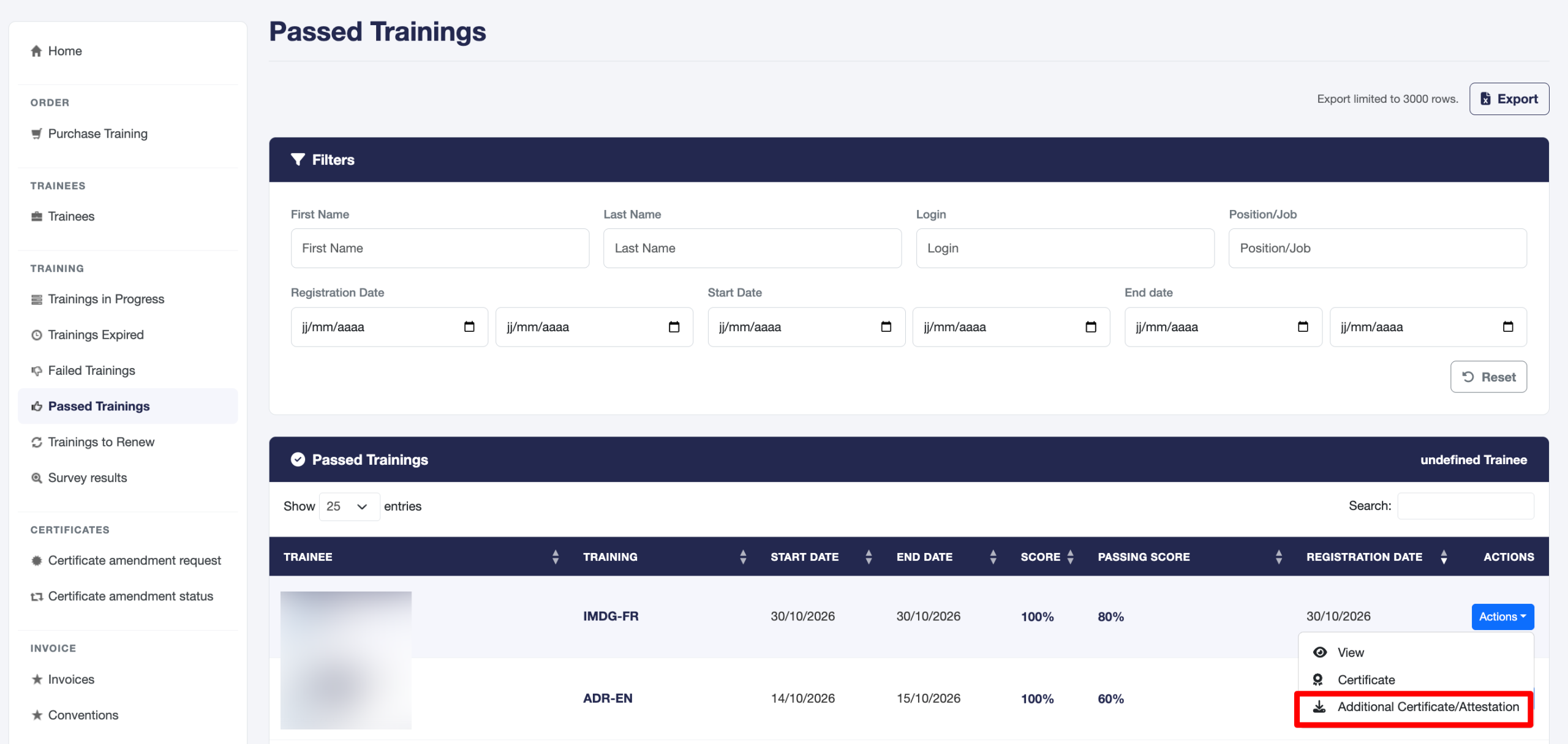
6. Downloading a completion certificate and an attendance record
To download an attendance record and/or a completion certificate:
Click on Passed Trainings
Locate the desired training course (you can search by the trainee’s first and last name, or by their login)
Click on Actions then Additional Certificate/Attestation
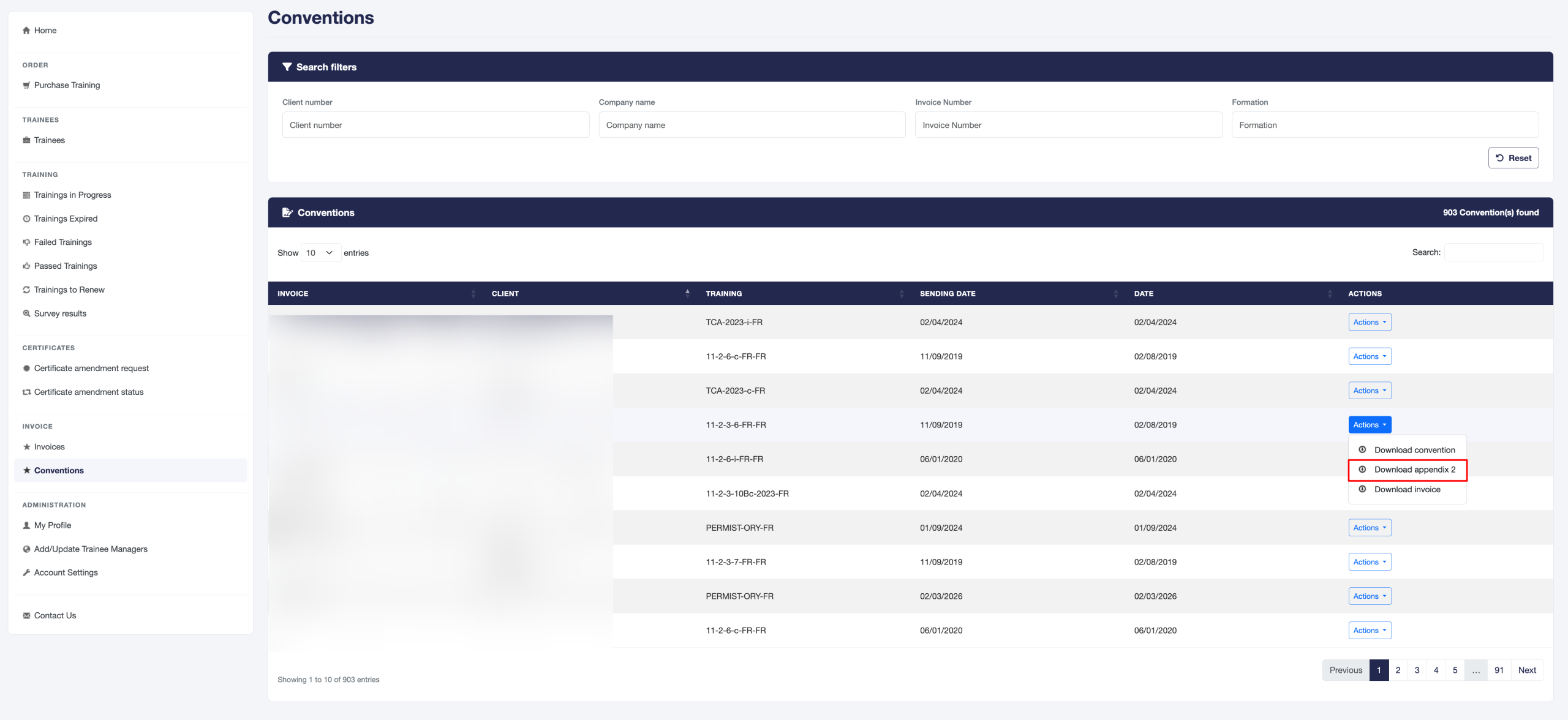
7. Downloading connection logs linked to a training agreement
To download the connection logs linked to a training agreement:
Click on Conventions
Locate the desired agreement and click on Actions
Download Appendix 2
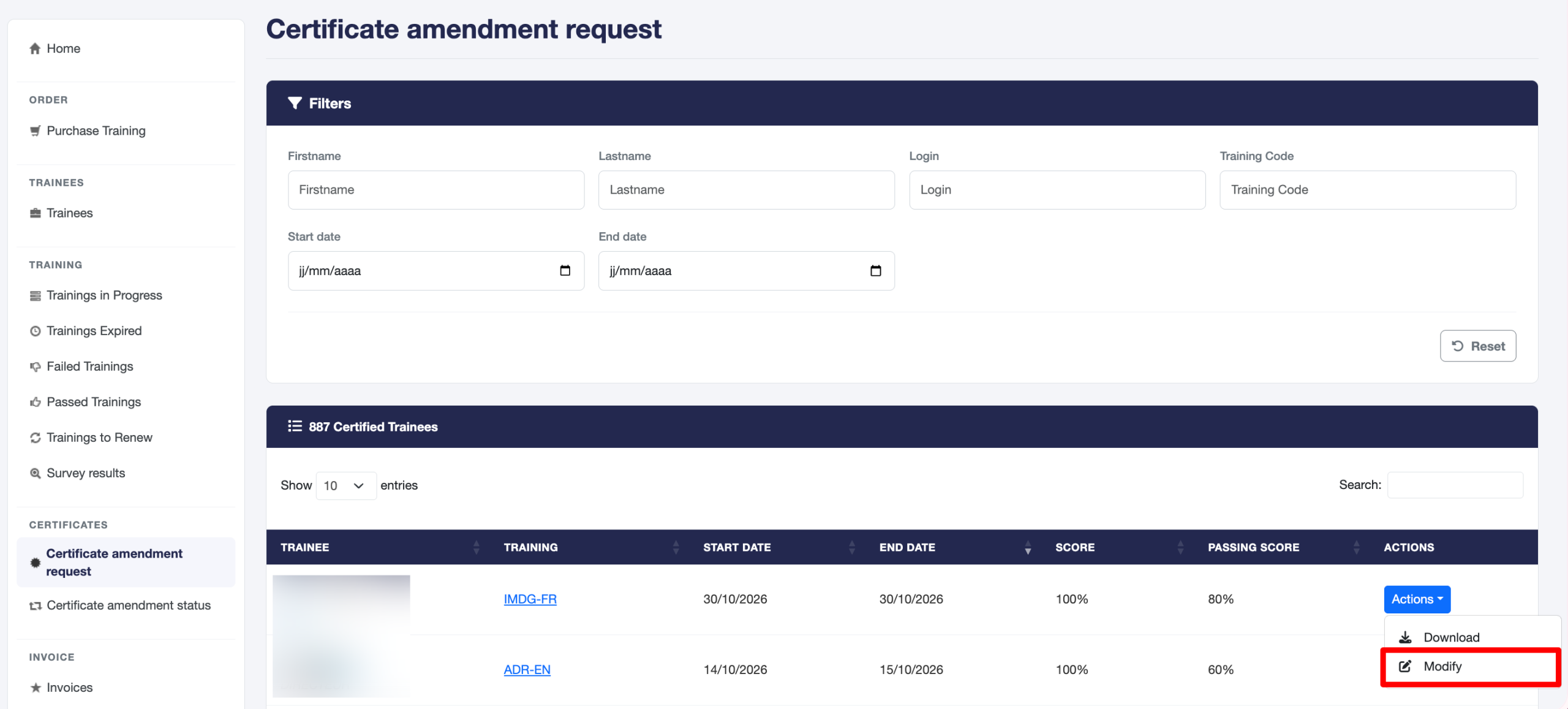
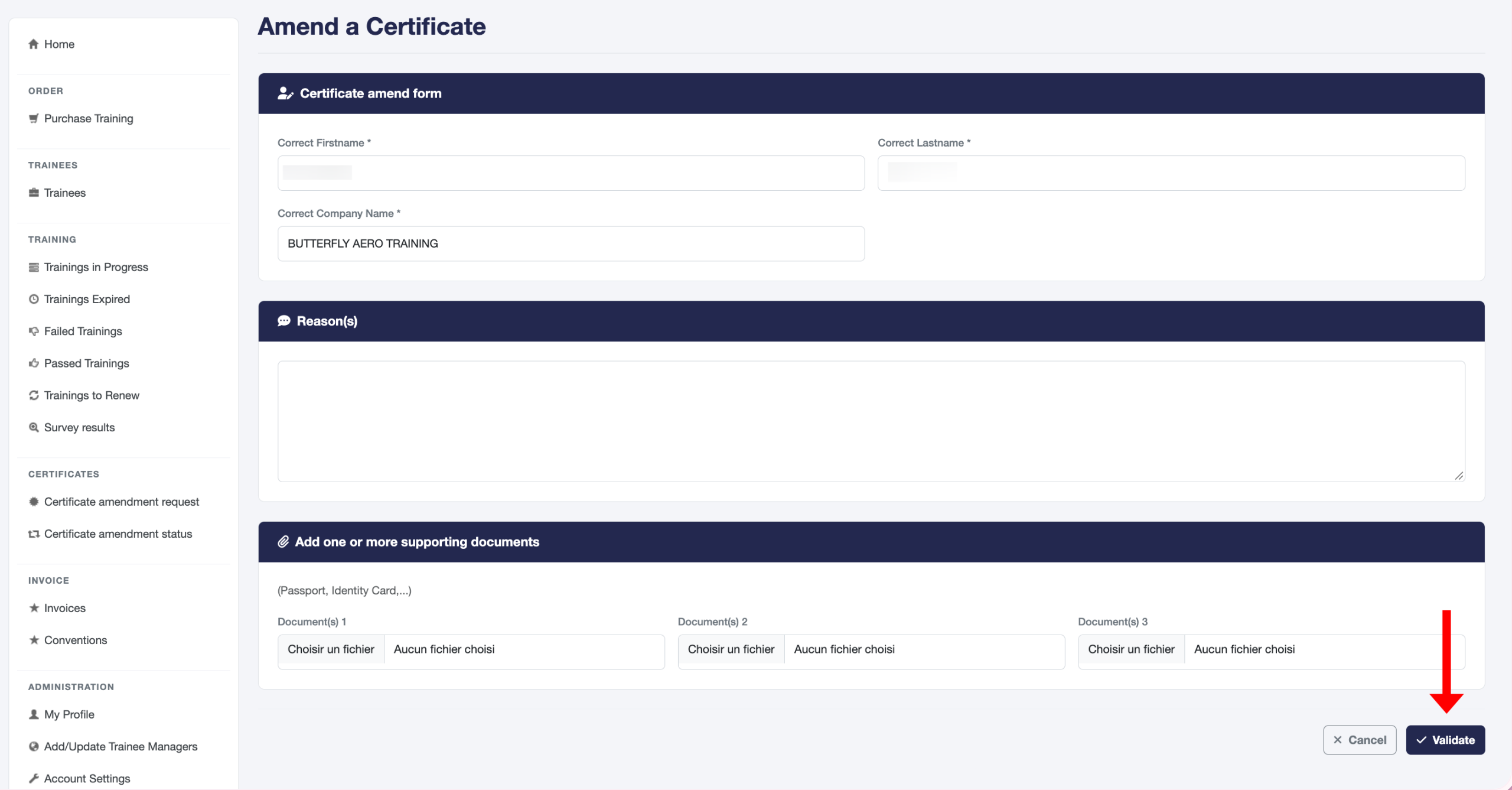
8. Submitting a certificate amendment request
From your dashboard, click on Certificate amendment request. You can search for your certificate using the trainee’s first name, last name, or login.
Select your certificate, then click on Actions on the right and select Modify
Enter the correctly spelled first and last name in the fields, and/or the company name, then click on Validate
You will receive the certificate with the corrected spelling by email and it will then remain visible and available for download in your customer account
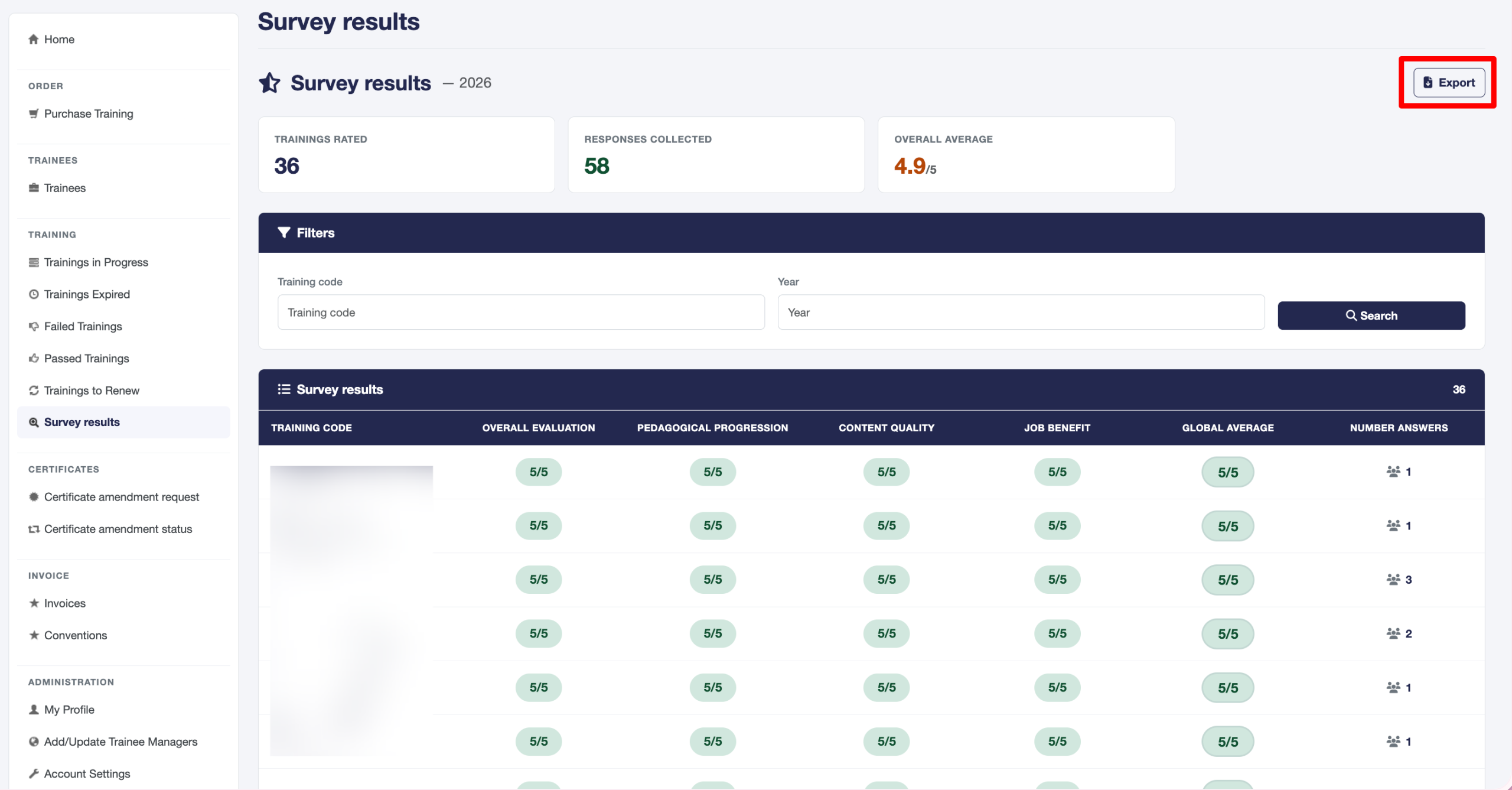
9. Exporting your dashboards
From your dashboard, click on Survey results, then on Export to download all the results in Excel format (.xlsx)
Here you will find the satisfaction ratings left by your trainees at the end of their training courses (learning progress, content quality, job relevance…)
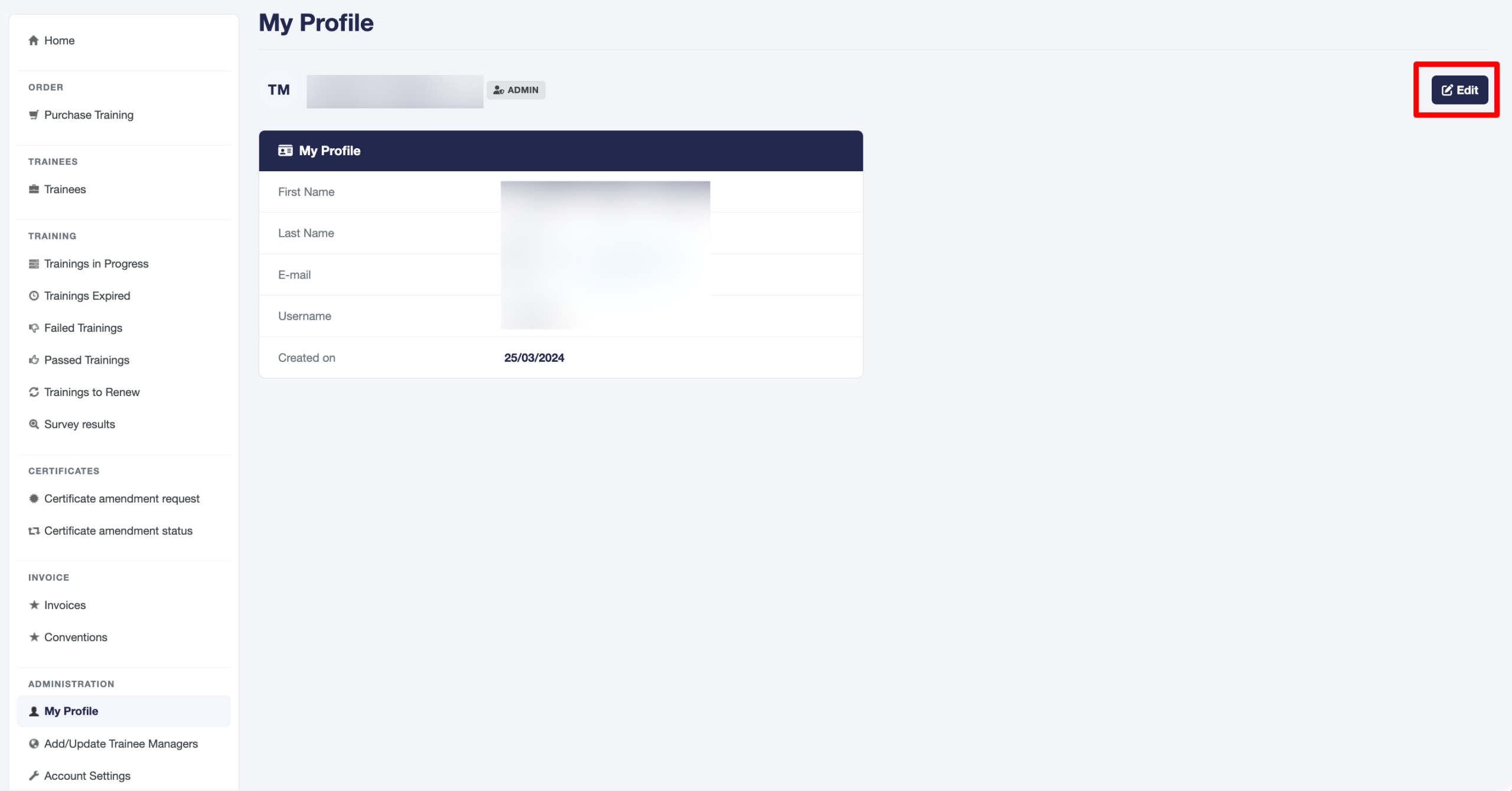
10. Being notified and notifying trainees about training courses that have not started
From your dashboard, click on My Profile, then on Edit
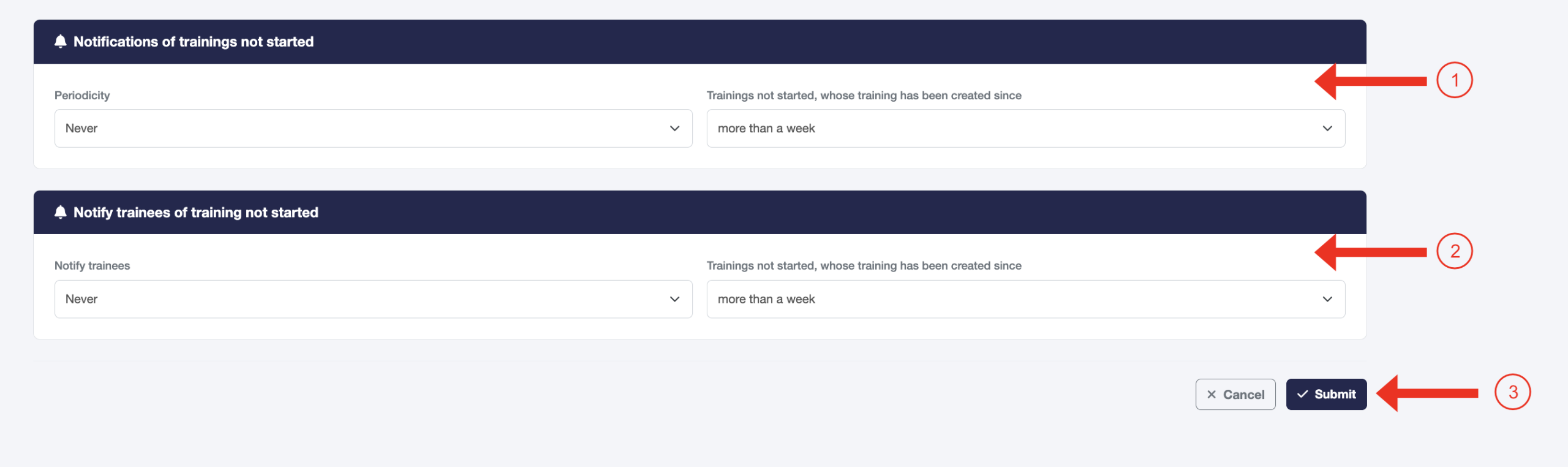
1) To be notified about training courses that have not started, select the periodicity and the time since registration
2) To notify trainees about training courses that have not started, select the periodicity and the time since registration
3) Click on Submit to confirm your choice
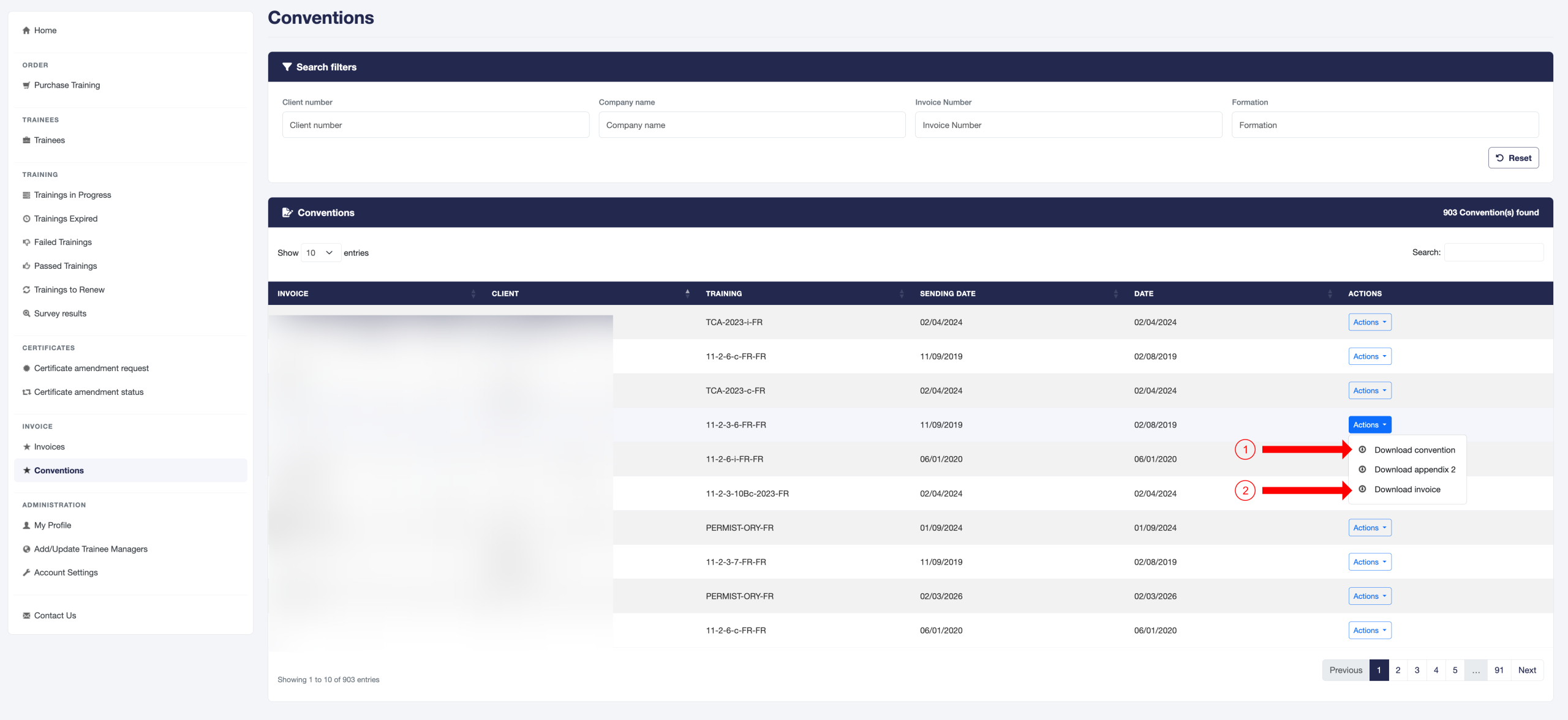
11. Downloading invoices and conventions
To download invoices and training conventions:
Click Conventions
Find the convention you need and click Actions
1) Download convention 2) Download invoice
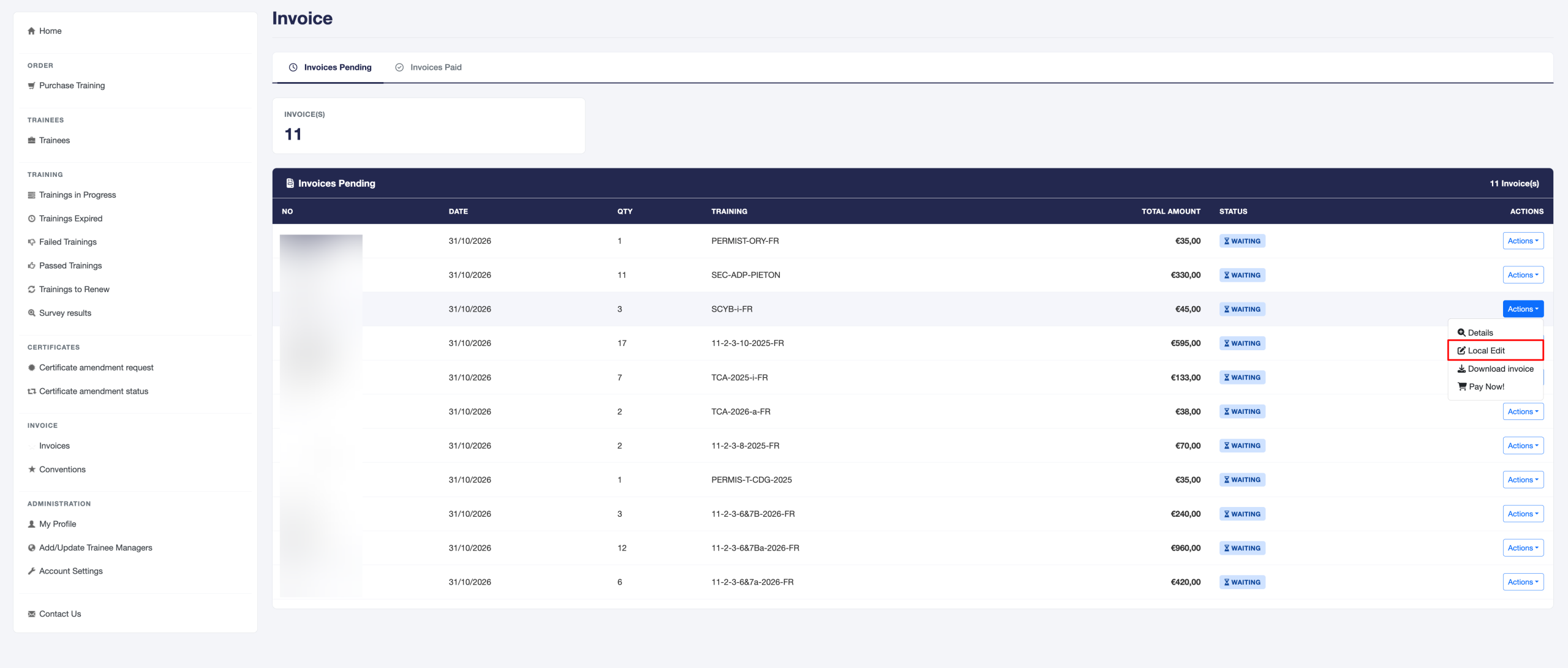
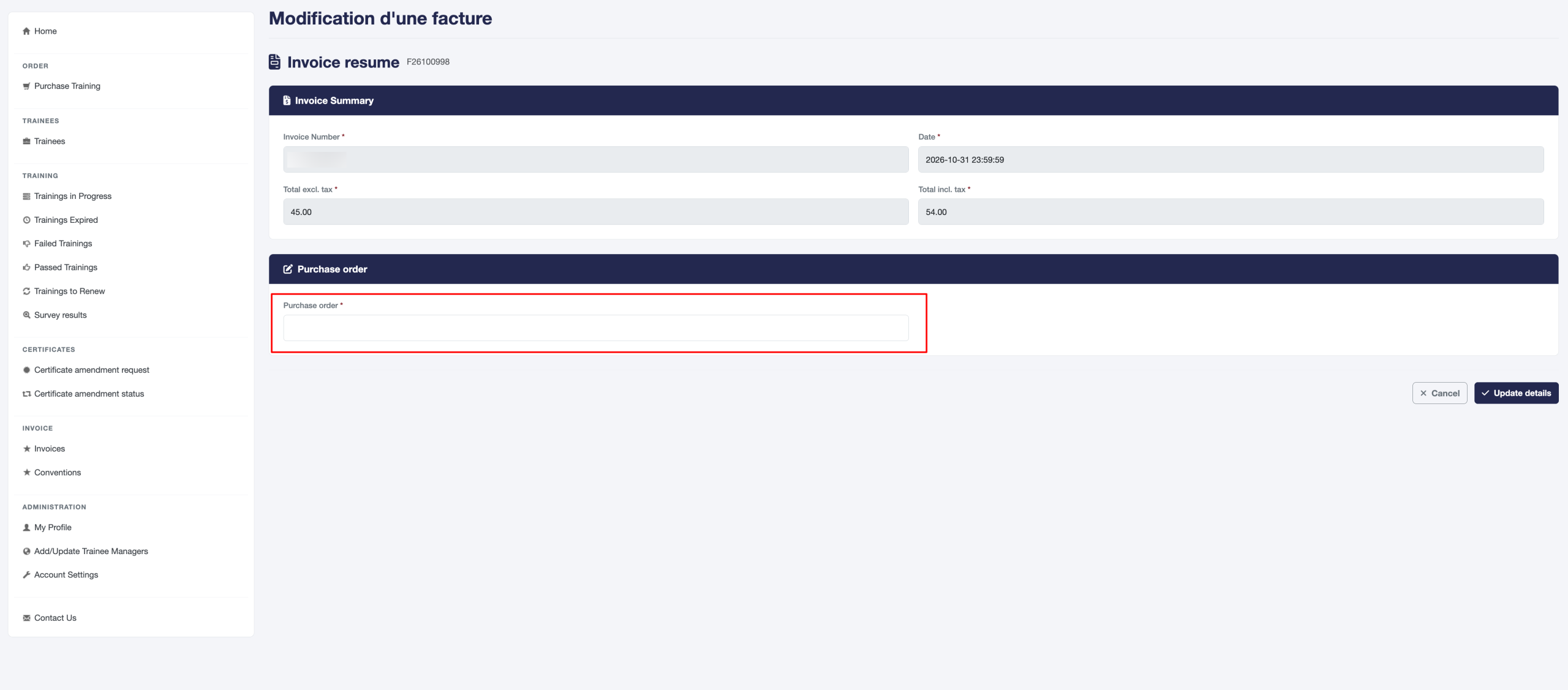
12. Adding/editing a purchase order number on an invoice that has already been generated
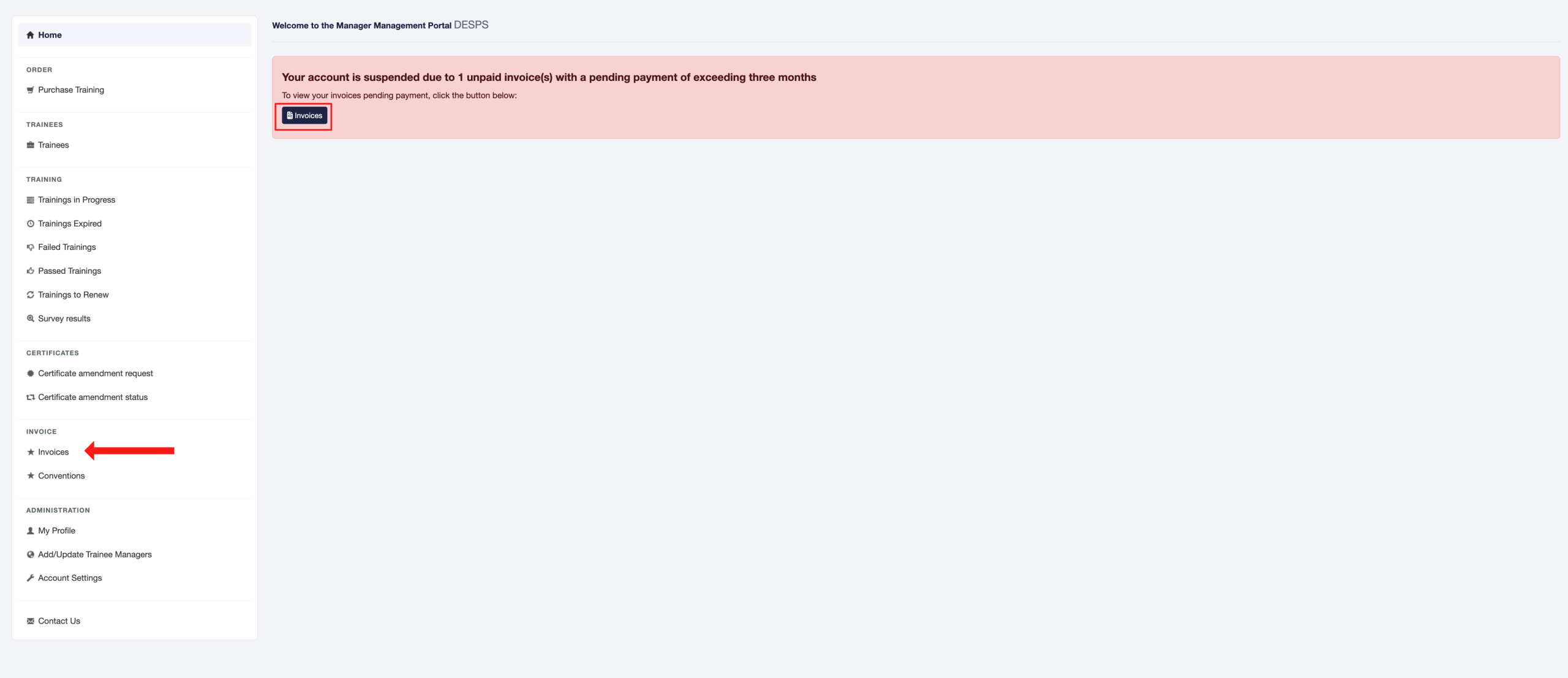
From your dashboard, go to Invoices, open the Actions menu and select Local Edit.
Enter the purchase order number or correct the existing one, then click Update details:
NB: this is the only element youcan edit on theinvoice